How to Remove Background from GIF for Free
GIFs are popular and visually appealing. Whether for hilarious memes or for any professional use, they are the best to share. However, sometimes the background of a GIF does not fit well with your concept, so you want it to be replaced with a different background or removed completely. For this, there is no need to complicate yourself. The easiest solution available is a simple GIF Background Remover tools that make the process is simple and also easily accessible to all.
In this article, I will give a detailed process of removing the background from a GIF using the online tool. For this, there is no requirement for any technical skill or download of any software.
GIFs are used on websites, in presentations, or on social media platforms. While sharing these, the actual concept should not be misguided. A cluttered background might distract the main subject. Remove the background from a GIF and give a fresh, clean look. There are many online tools designed specifically for GIF background removal; however, I would suggest visiting https://safeimagekit.com/gif/remove-gif-background for an easy process.
How to Remove Background from a GIF – Step-by-Step Process
Choose Your GIF to Upload
The first thing is to select the GIF from which you want to remove the background. Whether it is a funny clip or a branded logo, the quality of the animated image should be good. The background and the main subject should be distinct to make background removal easy. After selecting, simply upload your GIF file into the designated area.
Adjust Settings and Select Background Color
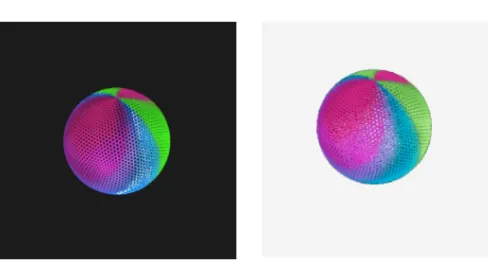
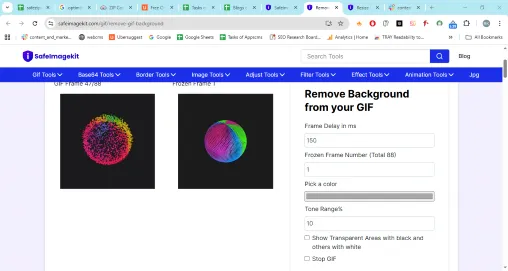
Once your GIF is uploaded, you can customize the background removal process. You can select a specific color to remove. You can also use the slider to fine-tune the removal process. Try these settings until the background is removed according to your main subject.
Review and Fine-Tune
Before finalizing, take a moment to review your GIF. See to it that the background is transparent and that nothing important was accidentally removed. If you want, you can adjust the settings for perfect results. If you are satisfied with the preview, then simply download the GIF.
A Few Tips for Better Results
It is always better to use a high-contrast solid background, as they are very easy to remove.
- Large GIFs can take a longer time to process. So, always resize or compress the GIFs before uploading.
- If your GIFs have multiple colors, then experiment with color settings and tolerance levels for the best outcome.
Final Thoughts
Removing backgrounds from GIFs used to be a complicated task. Due to free online tools, anyone without technical knowledge can remove the unwanted background of a GIF within seconds and share or use it. With just a few clicks, you can turn a cluttered, distracting GIF into a sleek, transparent masterpiece perfect for any project.