crops to fit dimensions while preserving aspect ratio.
Background Color:
Fit within dimensions with bg padding.
Image Resolution:-
Width
Height
DPI
Quality :-
Rotate & Flip :-
Shape :-
Zoom :-
100%
Set Exact Width and Height
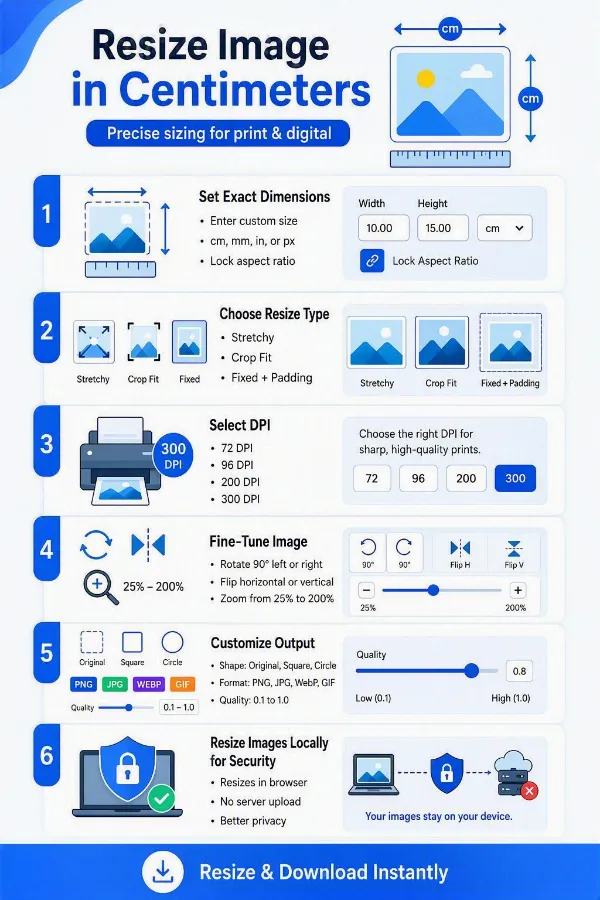
Enter the required image width and height and choose centimeters, millimeters, inches, or pixels. This makes the tool suitable for both physical-size requirements and digital dimensions. You can also lock or unlock the aspect ratio when entering custom dimensions.
Choose the Resize Types
Select the resize method based on how you want the original image handled. Stretchy - fills the complete width and height but may distort the image. Crop Fit - fills the dimensions while preserving proportions, cropping excess areas when necessary.
Fixed - keeps the complete image visible and adds padding around it. You can choose a background color or enter a hex color code for Fixed mode.
Match Physical Dimensions with the Right DPI
Choose from 72, 96, 200, or 300 DPI when your image has a physical size requirement. DPI helps determine the relationship between the image's pixel dimensions and its intended printed size. This is useful when an image must meet both a specific physical size and a required print resolution.
Fine-Tune the Image
Use the built-in editing controls to make final adjustments without needing another application. You can rotate 90° left or right, flip horizontally or vertically, and zoom from 25% to 200% to position or inspect the image before resizing. These controls help you prepare the image exactly as needed before applying the final resize.
Control the Output Shape, Quality, and Format
Prepare your resized image by selecting the appropriate shape, such as Original, Square, or Circle, along with the desired quality level from 0.1 to 1.0. You can also choose the output format as PNG, JPG, JPEG, WebP, or GIF. These options give you control over the final result to optimize the image's appearance, compatibility, and file size.
Resize Images Locally for Security
The image is processed locally in your browser rather than being sent to a server for resizing. This can be especially useful when working with personal photographs, identification documents, work files, screenshots, or other images that you prefer not to upload to a remote service.
Steps to Resize an Image in Centimeters
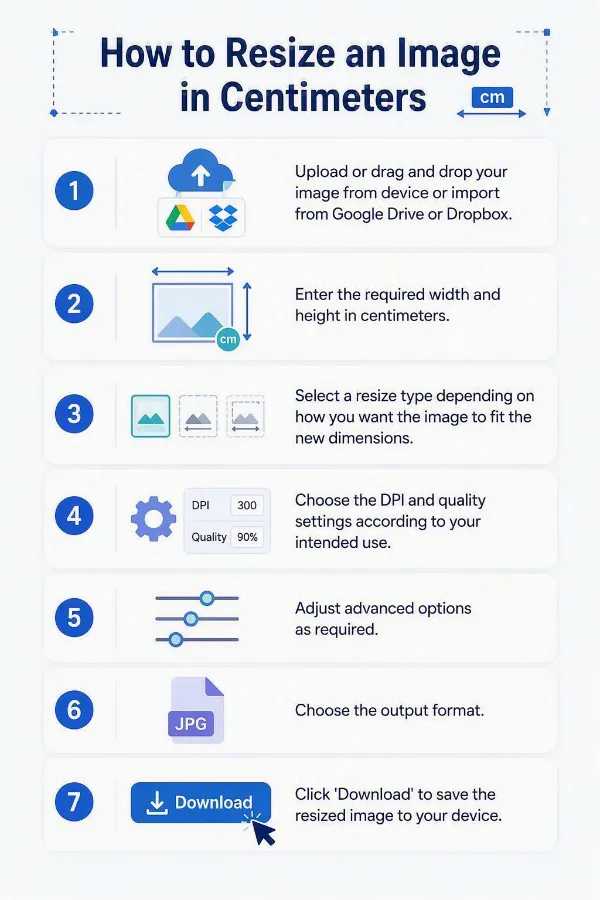
1 . Upload or drag and drop an image from your device or import it from cloud storage.
2 . Enter the required width and height in centimeters.
3 . Select a resize type based on how you want the image to fit the new dimensions.
4 . Choose the DPI and quality settings according to your intended use.
5 . Adjust advanced options as required.
6 . Choose the output format.
7 . Click 'Download' to save the resized image to your device.
Other useful information
Explore our visual guides and infographics
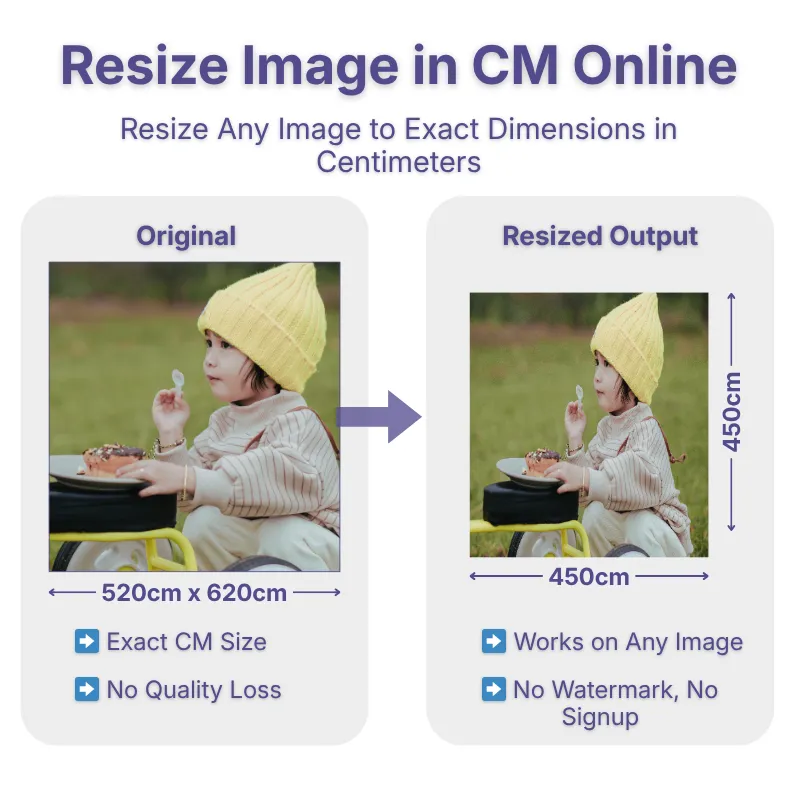
The infographic explains how to set and adjust image dimensions using centimeters.
The infographic highlights the features of the tool that resize the image in centimeter.
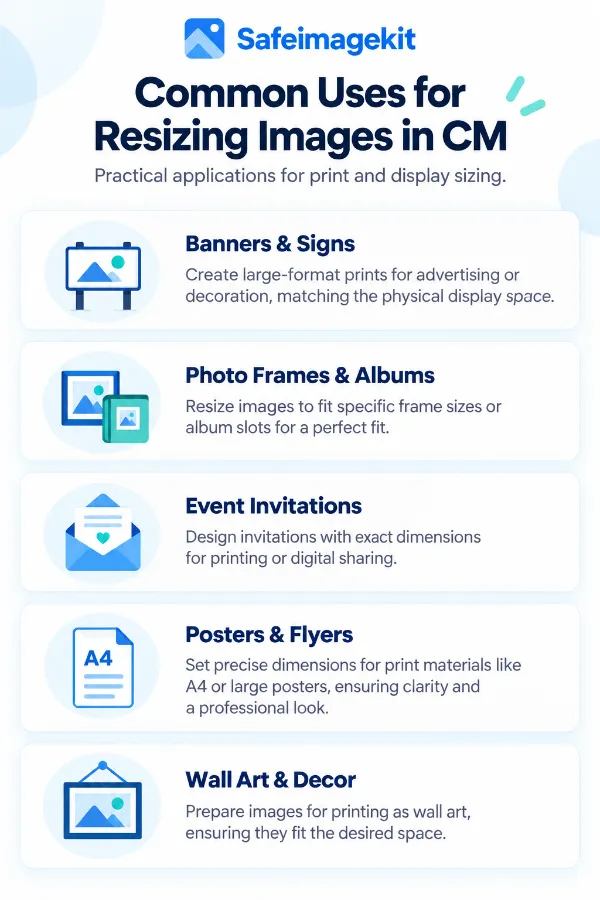
The infographic shows where centimeter-based image sizing is useful, such as printing, id photos, forms, documents, and physical layouts.
×
Frequently Asked Questions
Why would I need to resize an image in centimeters?
Centimeters are useful when an image must meet a physical size requirement rather than only a screen-size requirement. For example, a form, print layout, photograph, card, label, or document may specify an exact width and height in cm.
How do I resize an image to an exact size in cm?
Upload the image, enter the required width and height, choose the appropriate resize type and DPI, then download the result.
What is the difference between resizing an image in cm and pixels?
Centimeters describe a physical dimension, while pixels describe the number of digital pixels in an image. When preparing an image for printing, physical size and DPI determine how many pixels are needed for that size.
Why does DPI matter when resizing an image in centimeters?
DPI connects the physical dimensions of an image with its pixel dimensions. For the same centimeter dimensions, a higher DPI requires more pixels than a lower DPI.
What DPI should I choose for an image resized in cm?
It depends on the intended use. Lower DPI settings can be suitable for some digital purposes, while higher DPI settings are commonly used when preparing images for printing. The required DPI should match the requirements of the destination or printer.
Can I resize a photo to a specific width and height in centimeters?
Yes. Enter the required width and height. You can then decide whether the image should stretch, crop to fit, or remain fully visible with padding.
What happens if my original image has a different aspect ratio?
The result depends on the resize type. Stretchy changes the image to fill the dimensions, Crop Fit maintains the aspect ratio but may remove parts of the image, and Fixed keeps the complete image visible and adds padding where necessary.
Which resize type should I use if I do not want the photo to look distorted?
Use Crop Fit or Fixed Resize type if maintaining the original proportions is important. Stretchy can alter the proportions when the requested dimensions have a different aspect ratio.
How can I resize an image in cm without cropping it?
Choose the Fixed resize type. The image is fitted inside the requested dimensions while preserving its proportions, and the remaining area can be filled with a background color.
How can I resize an image in cm without stretching it?
Choose Crop Fit or Fixed Resize type. Both preserve the image's proportions, but Crop Fit may remove portions of the image, while Fixed keeps the entire image and uses padding.
Can I choose the background color when resizing an image in cm?
Yes. With the Fixed resize type, you can choose the background color or enter a specific color using a hex color code.
Can I resize an image from pixels to centimeters?
Yes. Select centimeters as the unit and enter the required physical dimensions. Because physical size and pixel dimensions are related through DPI, select the DPI appropriate for the intended use.
Can I resize an image from inches or millimeters to centimeters?
Yes. The tool supports centimeters, inches, millimeters, and pixels, allowing you to enter the dimensions using the measurement unit that matches your requirement.
What is the difference between centimeters and millimeters for image resizing?
Both are physical measurement units. One centimeter equals 10 millimeters. Centimeters are convenient for larger dimensions, while millimeters can be more convenient when working with smaller or more precise physical measurements.
Can I resize a photo for printing in centimeters?
Yes. You can specify the physical width and height in centimeters and choose a DPI setting suitable for the intended print output. The required pixel resolution depends on both the physical dimensions and DPI.
Can I resize a photo to 4 cm × 2 cm?
Yes. Enter 4 cm for width and 2 cm for height. Then select the resize method that suits the original image's aspect ratio and download the resulting image.
Can I resize an image to a square or circle?
Yes. The shape option allows you to keep the original shape or change the output to a square or circle. This can be useful for profile images and designs that require a specific shape.
Is it safe to resize a private or sensitive image with this tool?
The resizing is performed locally in your browser rather than sending the image to a server. This means the image does not need to be uploaded to a remote server for the resizing operation, which is useful when working with private photographs, documents, or other sensitive files.
Can I resize a medical image without uploading it to a server?
Yes. The image can be resized locally in your browser without being uploaded to a remote server. This helps keep sensitive medical images on your device during the resizing process.
Can I resize an image from Google Drive or Dropbox?
Yes. You can import an image from Google Drive or Dropbox, as well as upload it directly from your device or drag and drop it into the tool.
Where is my resized image saved after I download it?
After you click Download, the resized image is downloaded to your device through your browser. You can then access it from the normal download location configured by your browser.
Can I lock the aspect ratio while resizing an image in centimeters?
Yes. Enable Lock Aspect Ratio when you want the image dimensions to change proportionally. Disable it when you need to enter an exact width and height independently.
How can I resize an image to a 9:16 aspect ratio without manually calculating the dimensions?
If you need a portrait-oriented image for mobile screens, Stories, Reels, or other vertical formats, you can use a 9:16 image resize tool to set the required proportion directly. This helps maintain the correct vertical composition instead of repeatedly adjusting width and height manually. You can also choose whether the image should be stretched, cropped to fit, or padded with a background depending on how you want the final image to look.
Can I remove the background from an animated GIF without converting it into a still image?
If you have an animated GIF whose background you want to remove, a GIF background remover can be useful when you want to preserve the animation while separating the foreground from the surrounding background. This can be helpful for animated graphics, stickers, simple logos, and other GIF-based visuals where the background interferes with the design.
Over 500k Users Rely on Our Image Editing Tools Monthly
Join a growing community of creators who trust safeimagekit.com for versatile image editing and processing solutions.
We appreciate your feedback and will use it to improve our services.
About The Author
Taufik has an analytical mindset and great attention to detail. He excels in analyzing website performance, conducting keyword research, optimizing on-page content, and developing effective link-building strategies.