
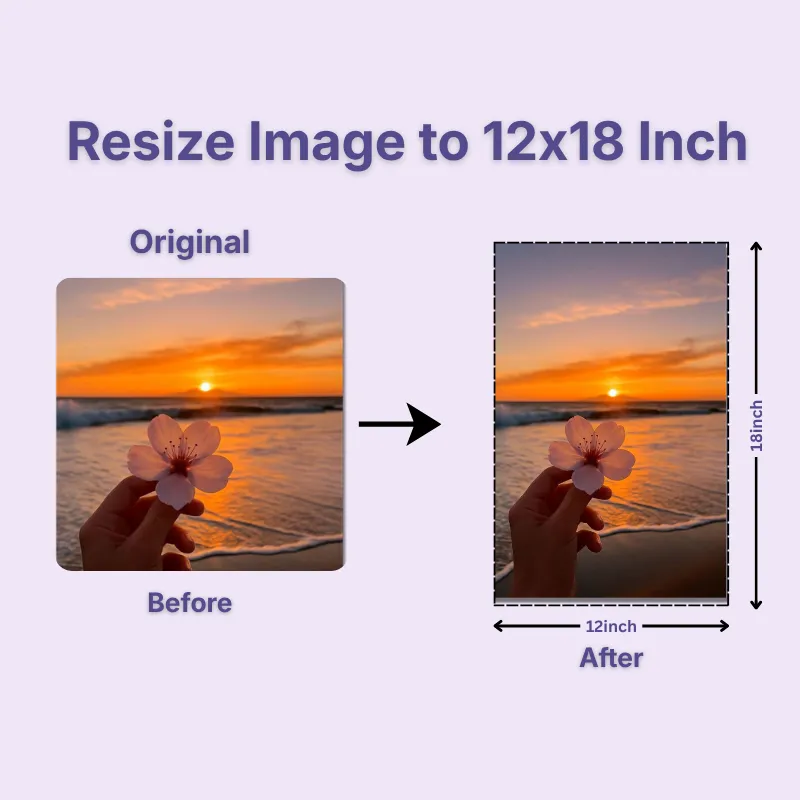
Prepare your images for one of the most popular print sizes used for posters, framed photographs, wall art, promotional displays, and canvas prints. Simply upload your image, customize the resize settings if required, and download a print-ready image in just a few clicks. The tool simplifies the resizing process while helping you achieve accurate print dimensions.
Different images require different resizing methods to achieve the best print results. Use Stretch when exact 12 × 18 inch dimensions are required; Crop Fit to create full-bleed prints while maintaining the image's proportions; or Fixed to preserve the entire image with optional background padding. These resize modes help you prepare posters, photographs, artwork, and promotional prints with the appearance that best suits your project.
Printing requires more than selecting the paper size. The tool automatically calculates the correct pixel dimensions based on your chosen DPI, helping you prepare images for both digital use and professional printing. Whether you choose 72, 96, 150, 200, or 300 DPI, the dimensions are adjusted automatically to match your print requirements.
Go beyond simple resizing with built-in editing tools designed for greater flexibility. Adjust the image by rotating, flipping, zooming, cropping, or selecting a different shape before downloading. Combining these editing options with custom dimensions, DPI, and resize modes helps you create a 12 × 18 inch image that matches your exact requirements.
Choose the image quality that best suits your project before downloading. Higher quality settings preserve more detail for posters, artwork, and professional prints, while lower settings create smaller files for faster sharing and storage. This allows you to balance image clarity and file size without changing the selected 12 × 18 inch dimensions.
Once your image has been resized, download it in JPG, JPEG, PNG, WEBP, or GIF based on your needs. JPG is ideal for photographs, PNG works well for graphics and transparency, WEBP offers smaller file sizes for the web, and GIF supports simple animations. Choosing the right format helps ensure better compatibility for printing, sharing, or online publishing.
Other useful information
Explore our visual guides and infographics
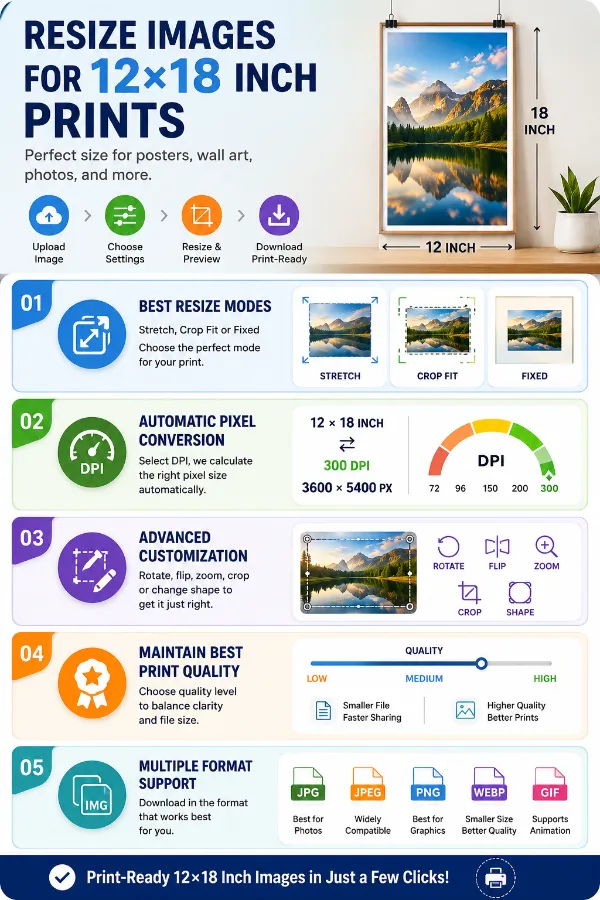
The infographic outlines the main options for preparing images at a 12 × 18 inch size.
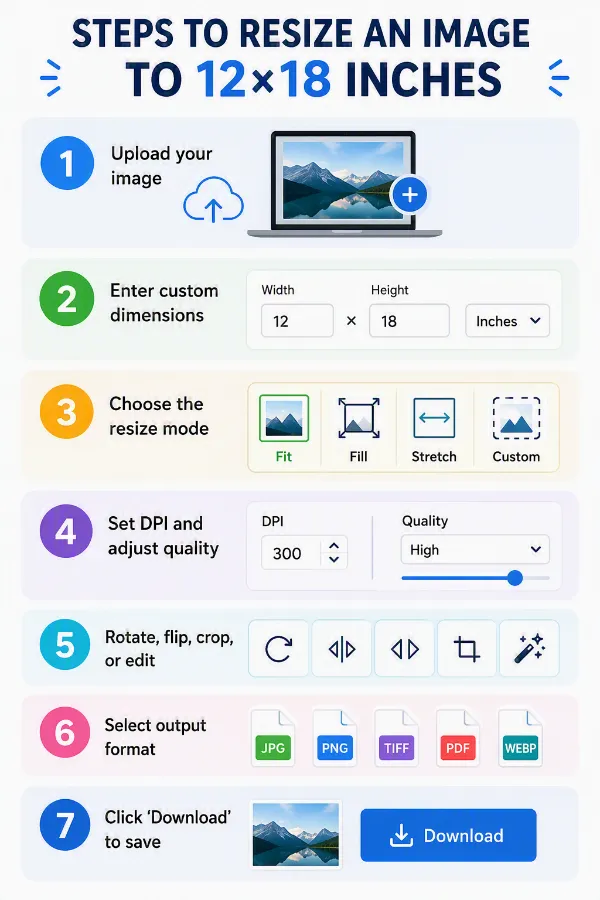
The infographic explains how to set an image to 12 × 18 inches and prepare it for printing or display.
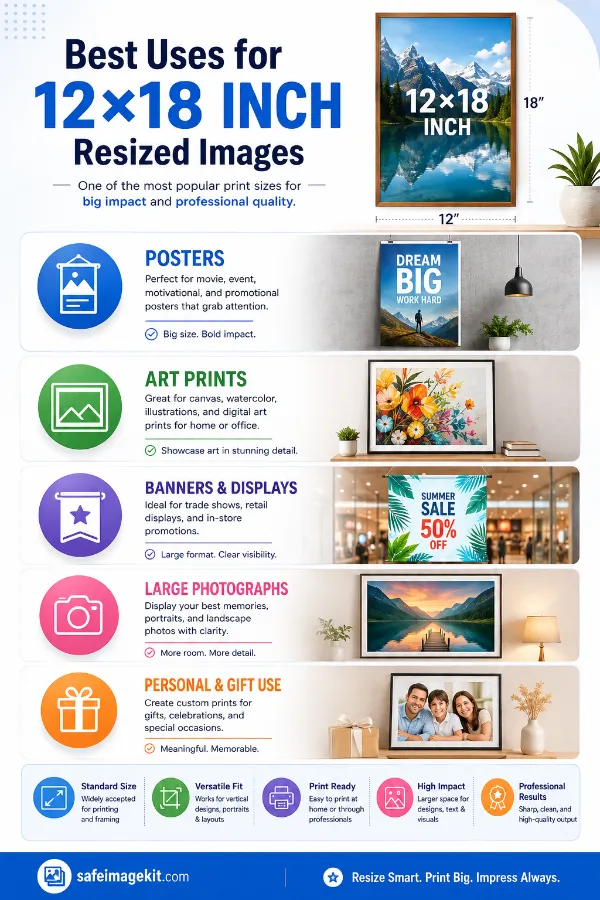
The infographic highlights common uses for 12 × 18 inch images in posters, photo prints, artwork, and display materials.
Frequently Asked Questions
A 12 × 18 inch image is a standard print size with a 2:3 aspect ratio, making it ideal for posters, framed photographs, artwork, promotional displays, canvas prints, and wall decor. Its larger size provides excellent detail while remaining easy to print and frame.
Upload your image, select 12 × 18 inches as the output size or enter custom dimensions if needed, choose the resize mode that best fits your image, adjust the DPI and image quality if required, then download the resized image. You can also rotate, flip, crop, or make other edits before saving.
Yes. Reducing an image to 12 × 18 inches generally maintains excellent quality. Enlarging a low-resolution image may reduce sharpness because additional pixels must be generated. For the best results, start with a high-resolution image and choose an appropriate DPI.
The ideal DPI depends on how the image will be used. 72 DPI – Digital viewing 96 DPI – Presentations and screens 150 DPI – Draft or everyday printing 300 DPI – Professional-quality photo and poster printing
The required pixel dimensions depend on the selected DPI. 72 DPI 864 × 1296 pixels 96 DPI 1152 × 1728 pixels 150 DPI 1800 × 2700 pixels 200 DPI 2400 × 3600 pixels 300 DPI 3600 × 5400 pixels For high-quality printing, 300 DPI (3600 × 5400 pixels) is recommended.
Choose the resize mode based on your requirements. Stretch – Resizes the image to the exact dimensions. Crop Fit – Preserves the aspect ratio while filling the frame. Fixed – Keeps the entire image visible by adding background padding if necessary.
Not always. If you choose Crop Fit, small portions of the image may be trimmed to completely fill the 12 × 18 inch frame. If you want to keep the entire image visible, select Fixed mode instead.
Yes, but enlarging a low-resolution image may reduce sharpness or introduce pixelation. For the best print quality, begin with a high-resolution source image.
Yes. Resizing usually changes the file size because the image dimensions are modified. The final size also depends on the selected image quality, DPI, and output format.
Yes. 12 × 18 inches is one of the most widely used poster sizes for promotional materials, classroom displays, retail advertising, movie posters, artwork, exhibitions, and business signage because it offers excellent visibility while remaining easy to print and frame.
A 12 × 18 inch print fits a standard 12 × 18 inch frame. If you prefer a decorative border, you can also use a 16 × 20 inch frame.
This size works well for family portraits, wedding photography, travel photos, landscapes, wildlife images, artwork, illustrations, promotional posters, certificates, and decorative wall prints because the larger format showcases fine details.
Yes. Many canvas printing services support 12 × 18 inch prints. For the best results, use a high-resolution image and select an appropriate DPI before downloading.
It depends on your purpose. 12 × 18 inch prints provide a larger viewing area, making them ideal for posters, wall art, and photography displays. 8 × 10 inch prints are better suited for tabletop frames, albums, and smaller spaces.
Yes. Personalized 12 × 18 inch photo prints make thoughtful gifts for birthdays, anniversaries, weddings, graduations, Mother's Day, Father's Day, and many other special occasions.
You can resize scanned photographs, old family pictures, and printed images to 12 × 18 inches. For the best results, scan the original image at a high resolution before resizing.
Yes. The tool works on smartphones, tablets, laptops, and desktop computers. Simply open it in your browser, upload your image, adjust the settings, and download the resized file.
Yes. You can resize images to 12 × 18 inches for free without creating an account or installing software. Your uploaded images are processed securely and are not sold or shared with third parties.
If your image contains unwanted borders or extra background, use our Image Cropper to trim it before resizing to 12 × 18 inches.
If you need to resize several images at once, use our Multi-Image Resizer to process multiple files more efficiently instead of resizing them individually.
Over 500k Users Rely on Our Image Editing Tools Monthly
Join a growing community of creators who trust safeimagekit.com for versatile image editing and processing solutions.