

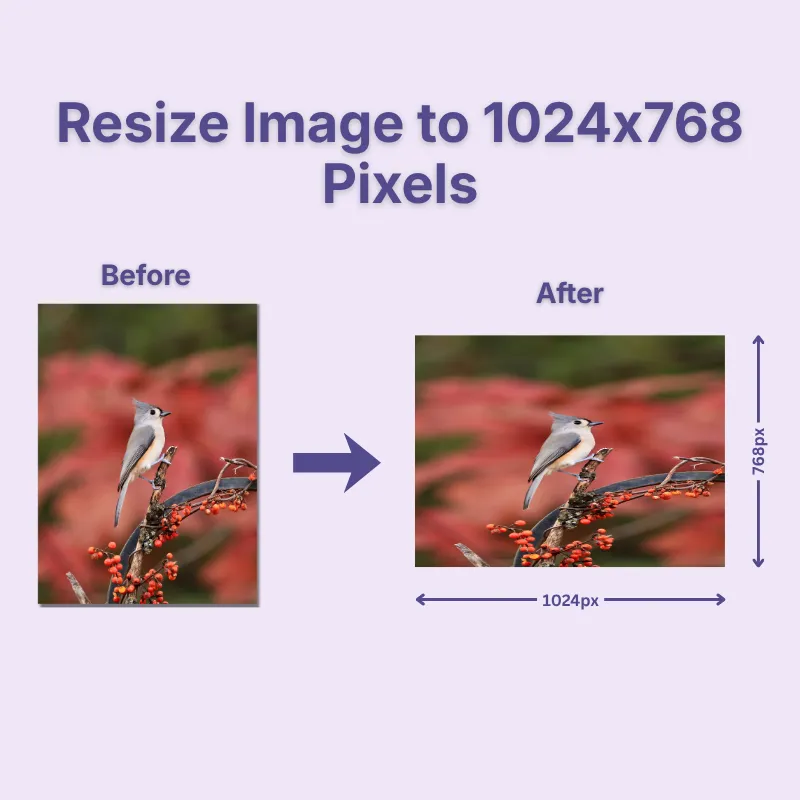
Getting the correct image dimensions is important for presentations, websites, software applications, projectors, and digital displays. Simply upload your image and let the resize tool automatically generate a 1024 × 768 pixel version with accurate dimensions. There's no need to manually calculate width or height, making the process faster and more reliable.
Different images require different resizing approaches. Select Stretch when exact dimensions are your priority; Crop Fit to fill the entire frame while maintaining proportions; or Fixed to keep the complete image visible with optional background padding. These flexible options help produce professional-looking results for every type of picture.
Adjust both the image quality and DPI before downloading your resized picture. Lower DPI values work well for websites, emails, and online sharing, while higher DPI settings are better suited for printing. The quality scale also allows you to balance image clarity and file size based on your requirements.
Although this page is designed for 1024 × 768 pixels, the image resizer also supports pixels, centimeters, millimeters, and inches. This flexibility makes it easy to prepare images for digital platforms, printed documents, product labels, or custom size requirements without switching between multiple tools.
Make quick adjustments before downloading your resized image. Rotate sideways photos, flip images horizontally or vertically, zoom into important areas, or change the image shape to a square or circle. These built-in editing tools help you prepare your picture without needing additional editing software.
After resizing is complete, save your image in JPG, JPEG, PNG, WEBP, or GIF. Whether you're creating web graphics, preparing printed documents, or uploading images to another platform, choosing the appropriate format helps ensure the best compatibility and quality.
Other useful information
Explore our visual guides and infographics
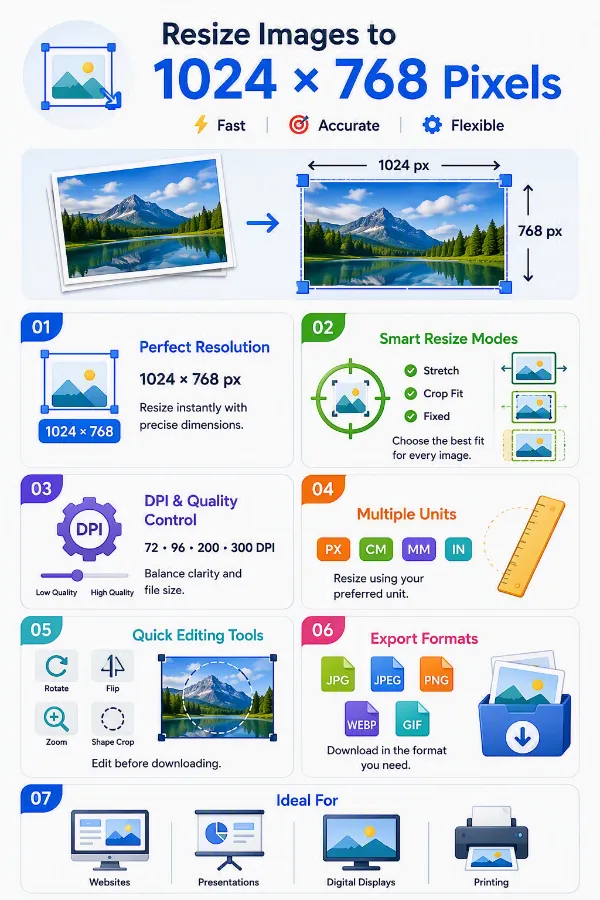
The infographic presents the main options available for creating 1024×768 images, including custom dimensions, aspect ratio control, fitting modes, dpi, quality, and file formats.
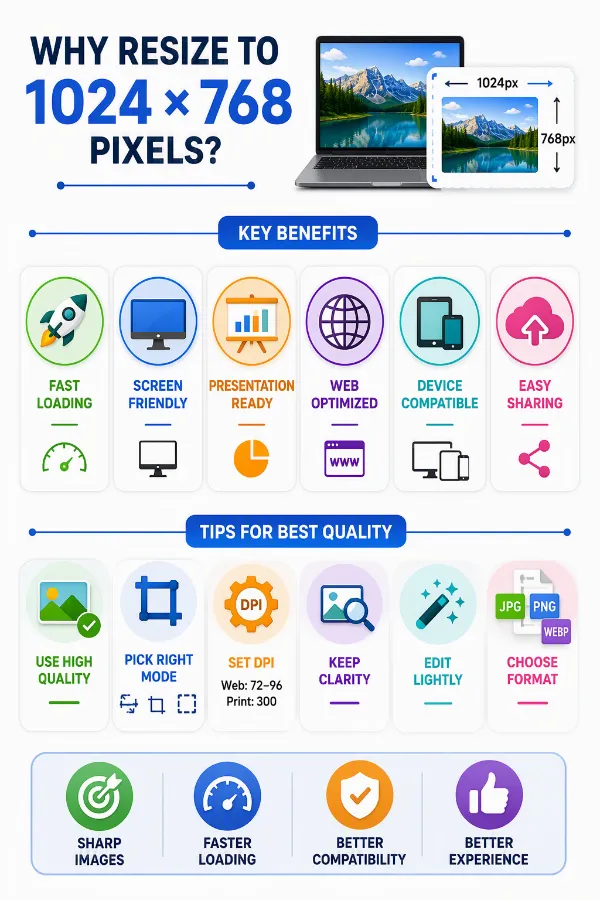
The infographic outlines the benefits of using 1024×768 pixel dimensions for consistent sizing, display requirements, and image uploads.
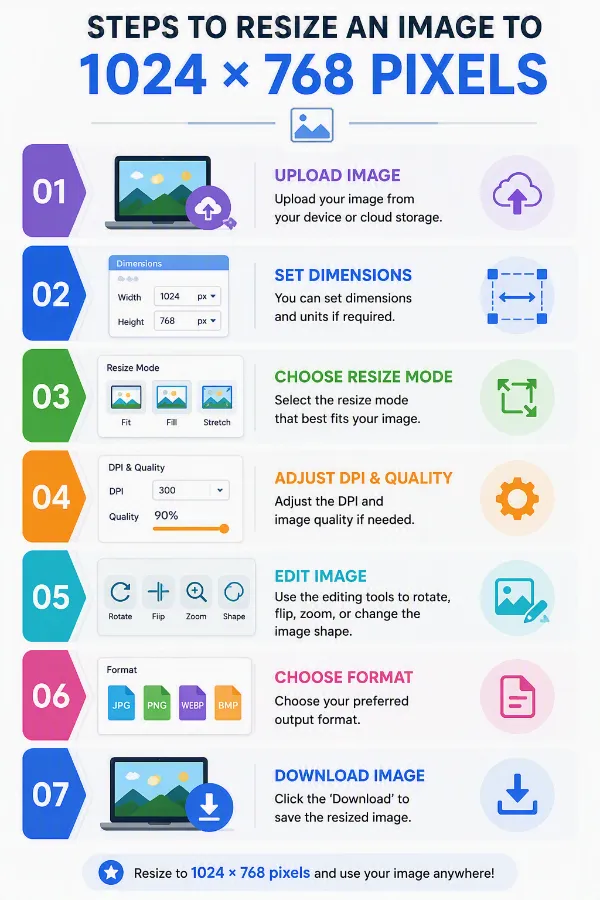
The infographic shows the steps for resizing an image to 1024×768 pixels, from setting the dimensions to applying the new size.
Frequently Asked Questions
A 1024 × 768 pixel image has a width of 1024 pixels and a height of 768 pixels, giving it a 4:3 aspect ratio. This resolution is commonly used for presentations, older computer displays, projectors, educational software, and applications that require the classic 4:3 screen format.
Upload your image to the online resize tool, choose your preferred resize mode, adjust the DPI or image quality if needed, and download the resized image. You can also rotate, flip, zoom, or change the output format before saving. You can resize images to any dimensions and units.
Yes. Resizing an image usually changes its file size because the image dimensions and total number of pixels are modified. The final file size also depends on the selected image quality, DPI, and output format.
The image resizer supports popular formats including JPG, JPEG, PNG, WEBP, and GIF. After resizing, you can download your image in the format that best suits your project, whether it's for printing, websites, presentations, or document sharing.
Yes. The resize tool works on smartphones, tablets, laptops, and desktop computers. Simply open it in your preferred browser, upload your image, adjust the settings, and download the resized version.
Yes. Images are processed securely for resizing, and no account registration is required. This allows you to resize pictures online quickly while helping keep your uploaded files private.
This tool resizes one image at a time so you can customize the settings for each picture. If you need to resize multiple images simultaneously, you can use our Multiimage Resizer tool for batch processing.
Yes. The tool can resize black and white images as well as color images while maintaining the selected dimensions and output settings.
The aspect ratio of 1024 × 768 pixels is 4:3. This means the image width is four units for every three units of height, making it suitable for older displays, projectors, and presentation screens.
The 4:3 aspect ratio helps images display correctly on devices and applications designed for this format. Resizing an image to the correct ratio reduces unwanted stretching, cropping, or empty borders.
Yes. You can print a 1024 × 768 pixel image after resizing. For better print quality, choose a higher DPI such as 300 DPI before downloading the resized image.
Although modern displays often use widescreen resolutions, 1024 × 768 pixels is still commonly used for projectors, older computer monitors, industrial systems, educational software, and legacy business applications.
The best resize mode depends on your image and how you plan to use it. Stretch forces the image to exactly 1024 × 768 pixels, which is useful when fixed dimensions are required. Crop Fit preserves the original aspect ratio while filling the entire frame by trimming excess areas. Fixed keeps the complete image visible and adds padding when necessary to fit 1024 × 768 without cropping. Choose the option that best matches your project and the appearance you want.
Yes. If you want to avoid stretching the image, use Crop Fit or Fixed mode. Crop Fit maintains the aspect ratio by trimming excess portions, while Fixed preserves the entire image by adding background padding where needed.
Yes. You can resize images to 1024 × 768 pixels for free without creating an account or installing any software. Simply upload your image, customize the settings, and download the resized result.
A 1024 × 768 image contains 786,432 pixels in total (1024 × 768 = 786,432). This resolution provides a classic 4:3 aspect ratio, making it suitable for presentations, projectors, and older display devices.
Images with a 1024 × 768 resolution are commonly used for presentation slides, projectors, educational content, legacy software, digital signage, and applications that require the traditional 4:3 display format.
Yes. The resize tool allows you to choose different DPI settings based on your needs. Lower DPI values are ideal for digital use, while higher settings such as 300 DPI are recommended for high-quality printing.
Choose PNG if you need transparency, JPG/JPEG for photographs and general use, WEBP for smaller web-friendly files, or GIF for simple graphics and animations.
Image clarity depends on the original image quality and whether you are reducing or enlarging it. Downsizing generally preserves sharpness, while enlarging a low-resolution image may introduce slight blur or pixelation. Adjusting the quality settings before downloading can help produce a better-looking image.
No. The image resizer works entirely in your web browser, so you can resize images online without installing software or creating an account.
1024 × 768 pixels is commonly known as XGA (Extended Graphics Array) resolution. It uses a 4:3 aspect ratio and has been widely used for computer monitors, LCD projectors, educational systems, and business presentations. Although many modern displays use widescreen formats, XGA remains common in classrooms, conference rooms, etc.
Yes. The tool can enlarge smaller images to 1024 × 768 pixels, but the final quality depends on the original image. Images with very low resolution may appear softer or slightly pixelated after enlargement because additional pixels must be generated.
72 DPI: approximately 14.2 × 10.7 inches 96 DPI: approximately 10.7 × 8 inches 150 DPI: approximately 6.8 × 5.1 inches 300 DPI: approximately 3.4 × 2.6 inches
Yes. A 1024 × 768 pixel image is well suited for presentations that use the traditional 4:3 slide format. It works well with classroom projectors, business presentations, educational materials, and older presentation systems that support XGA resolution.
Yes. The resize tool works with scanned photographs, printed documents, certificates, diagrams, and other images. After uploading, simply resize the image to 1024 × 768 pixels, adjust the quality or DPI if needed, and download it in your preferred format.
It can. PNG preserves image quality and supports transparency, making it suitable for graphics and logos. JPG/JPEG usually produces smaller file sizes and works well for photographs. WEBP offers excellent compression with good quality for websites, while GIF is best suited for simple graphics and animations.
Yes. You can upload images directly from your device or supported cloud storage services such as Google Drive and Dropbox, resize them to 1024 × 768 pixels, and download them in your preferred format.
The image resizer works in modern browsers such as Chrome, Edge, Firefox, Safari, and other Chromium-based browsers on desktop and mobile devices. No software installation is required.
Over 500k Users Rely on Our Image Editing Tools Monthly
Join a growing community of creators who trust safeimagekit.com for versatile image editing and processing solutions.