Generate a 1080×1920 portrait image with the 9:16 proportions commonly used for tall digital content. The vertical layout gives you a ready-sized canvas for designs, images, and other content that needs a full-height format. Upload your image, make any required adjustments, and download the finished 1080×1920 result.
Fill the Frame with Resize Types
Choose Crop Fit, Fixed, or Stretchy depending on how you want your original image to appear in the tall canvas. Crop Fit fills the frame while retaining proportions, Fixed keeps the complete image with padding, and Stretchy fills the canvas by adjusting the image dimensions. This gives you control over whether you prioritize the full image, a filled frame, or exact fitting.
Control Print and File Quality
Set the DPI from 72 to 300 when you need to prepare the image for different screen or print requirements. Adjust the quality from 0.1 to 1 to balance visual quality and file size. These settings let you fine-tune the final output instead of relying on a single fixed quality level.
Image Editing Adjustments
Use 25%–200% zoom, 90° rotation, horizontal or vertical flipping, and shape options before downloading. These controls are useful when the source image needs a quick orientation or appearance adjustment. You can make these changes within the same workflow instead of opening another editing tool.
Flexible Upload Options
Start with an image from your device, drag and drop, Google Drive, or Dropbox. You can choose the upload method that is most convenient for the file you want to prepare. This makes the tool useful whether the image is stored locally or in cloud storage.
Download for Different Uses
Save the finished 1080×1920 image as PNG, JPG, JPEG, WebP, or GIF. Choose the format according to your needs, such as photographs, web use, transparency, or compatibility with another application. You can also change the dimensions and units to create a different size if your project requires something other than 1080×1920.
Steps to Convert an Image to 1080×1920 Pixels
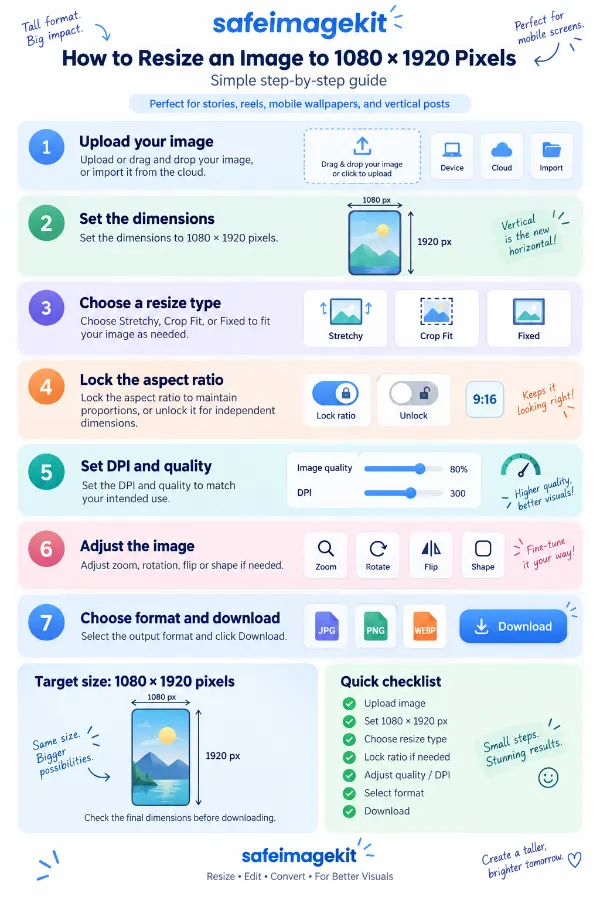
1 . Upload or drag and drop your image, or import it from the cloud.
2 . Choose Stretchy, Crop Fit, or Fixed to fit your image as needed.
3 . Lock the aspect ratio to maintain proportions, or unlock it.
4 . Set the DPI and quality to match your intended use.
5 . Adjust zoom, rotation, flip, or shape if needed.
6 . Select the output format and click Download.
Other useful information
Explore our visual guides and infographics
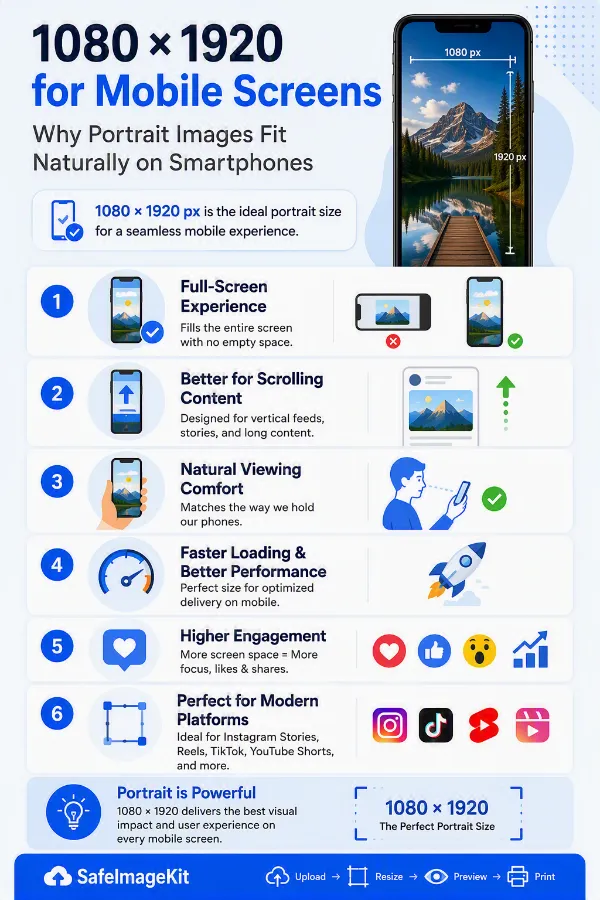
The infographic shows how 1080 × 1920 pixels fit naturally into full-screen vertical mobile layouts.
The infographic outlines the basic process for changing an image to 1080 × 1920 pixels for vertical use.
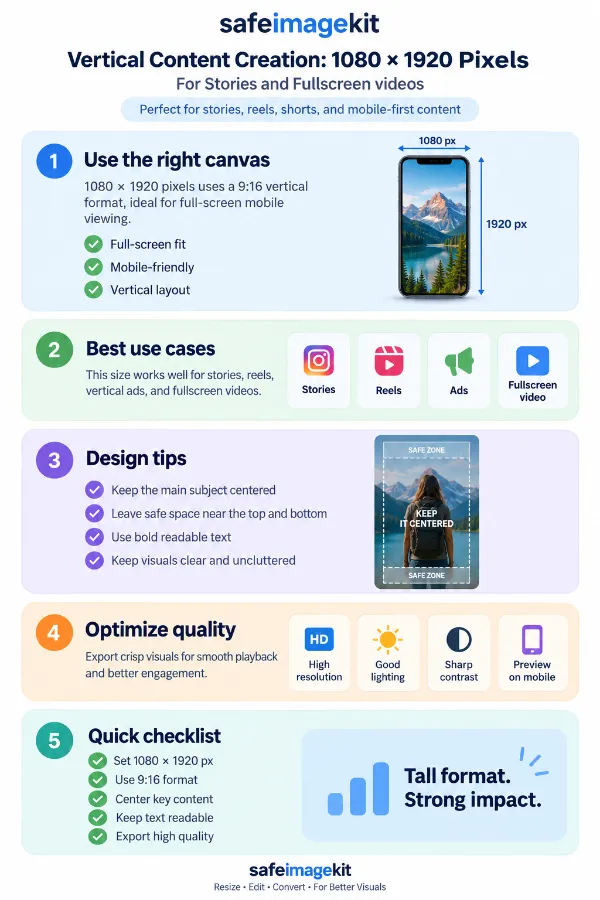
The infographic explains how the 1080 × 1920 pixel size works for vertical content designed for mobile viewing.
×
Frequently Asked Questions
Why is 1080×1920 commonly used for vertical images?
1080×1920 provides a relatively high-resolution 9:16 vertical canvas while keeping the width manageable for digital platforms. Its proportions are well suited to content that is designed to occupy a tall screen rather than a square or horizontal layout. It can also provide enough detail for many digital viewing situations without requiring an unnecessarily large pixel width.
Is 1080×1920 suitable for a phone screen?
It can be suitable for creating content intended for a tall smartphone display, particularly when the destination specifies a 9:16 layout. However, actual screen resolutions and display behavior vary between devices.
Can I use a 1080×1920 image for a digital poster?
Yes. The tall canvas can work well for digital posters, announcements, promotional graphics, invitations, and other vertical designs. You can prepare the image at the required dimensions and then choose an appropriate output format based on where the poster will be displayed or shared.
What happens if my image is already 1080×1920?
If the source image already has the required 1080×1920 pixel dimensions, there may be little or no need for dimensional resizing. You can still use the available controls if you want to change its quality, format, DPI, orientation, zoom, or other supported settings. This can be useful when the dimensions are correct but the file needs to be prepared differently.
Can I use the tool if I don't know the original image dimensions?
Yes. You do not need to calculate the original width and height before starting. Upload the image, and the tool will prepare the target output. The fitting controls then determine how the source image is handled inside the new canvas.
What should I do if important content is close to the edge of my photo?
Pay particular attention to the fitting result before downloading. If the image is being cropped, important details near the edges may be removed, so Fixed can be preferable when the complete source needs to remain visible. Zoom and the other adjustment controls can also help you inspect the image before creating the final file.
Can I use a 1080×1920 image for a full-height design?
Yes. The 9:16 proportions provide a tall canvas suitable for designs where the content needs to extend vertically. This can include posters, promotional artwork, announcements, backgrounds, and other screen-oriented designs. The final suitability still depends on the specifications of the platform or application where you intend to use it.
What DPI is best for a 1080×1920 image intended for a screen?
For an image intended purely for digital display, DPI is generally less important than the actual pixel dimensions. The tool provides 72 and 96 DPI options that can be suitable for general screen-oriented workflows, but the destination application may handle DPI metadata differently. If the destination gives a specific DPI requirement, follow that specification.
What DPI should I choose for printing a 1080×1920 image?
For print-oriented work, 200 or 300 DPI may be more appropriate depending on the required print quality. 300 DPI is commonly used when higher print detail is desired, while 200 DPI may be sufficient for some ordinary print applications.
What is the difference between DPI and image resolution?
Image resolution in pixels describes how many pixels make up the digital image, such as 1080×1920. DPI describes pixel density in relation to a physical inch and becomes particularly relevant when an image is prepared for physical printing. Therefore, changing DPI and changing the pixel dimensions are not necessarily the same operation.
Can a 1080×1920 image be printed?
Yes, but the appropriate print size depends on the selected DPI. For example, at 300 DPI, 1080 pixels correspond to 3.6 inches and 1920 pixels correspond to 6.4 inches. This means the same 1080×1920 pixel image can represent different physical dimensions when a different DPI is used.
Does higher image quality always mean a larger file?
Not necessarily in every situation, but higher quality settings can generally result in larger files, particularly with formats that use compression. The final file size also depends on the image content, dimensions, and selected format. Choose the quality based on how clear you want the image and how large the file can be.
Which format is better for a 1080×1920 photograph?
JPG or JPEG is generally a practical choice for photographs because it can provide good visual quality with relatively efficient file sizes. PNG is more appropriate when lossless output or transparency is important. WebP can be useful for web-oriented use where efficient file sizes are desirable.
When is WebP useful for a 1080×1920 image?
WebP can be useful when the image is intended for web-based use and you want an efficient combination of image quality and file size. Browser and application support should still be considered if the image will be uploaded to a specific service. If the destination only accepts certain formats, choose one of its supported formats instead.
Can I use GIF for a 1080×1920 image?
Yes, GIF is available as an output format. However, GIF has different technical characteristics from formats such as JPG, PNG, and WebP and is generally better suited to simple graphics or GIF-based content than high-quality photographic images. Choose it when the application or intended use specifically calls for GIF.
Can I change the dimensions to something other than 1080×1920?
Yes. The tool is not restricted to the 1080×1920 size. You can enter your own width and height when you have a different requirement, and you can work with pixels, centimeters, millimeters, or inches depending on the type of dimensions you need.
Can I use centimeters or inches instead of pixels?
Yes. The tool supports pixels, centimeters, millimeters, and inches. Pixels are generally convenient when working with digital specifications, while centimeters, millimeters, and inches can be more useful when a physical size is specified for printing or another physical application.
Why would I rotate a photo before creating a 1080×1920 image?
Rotation can be useful when the source image has the wrong orientation for the intended vertical layout. For example, a photograph captured horizontally may need to be rotated before being prepared for a tall canvas. The tool provides 90-degree left and right rotation so you can change the orientation within the same workflow.
What does the zoom control do?
The zoom control changes the viewing scale of the image, allowing you to inspect it at different levels before downloading. A lower setting can show more of the image within the workspace, while a higher setting provides a closer view of details. Zoom should not be confused with changing the final pixel dimensions of the output.
Can I create a different-shaped output from a 1080×1920 image?
Yes. You can choose Original Shape, Square, or Circle based on how you want the final image to look. This is useful when the same image needs to be prepared for different visual uses.
How can I create a repeated or mirrored visual from a single image?
If you want to create a creative composition using repeated copies of the same picture, a duplicate image effect can help you produce multiple instances of an image within a single visual. This can be useful for creating tiled compositions, repeated patterns, experimental designs, or eye-catching social media graphics without having to manually copy and arrange the image several times.
How can I create a colorful PNG for a graphic or design project?
A colorful PNG can be useful when you need a bright visual element for a presentation, website graphic, social media design, background, or creative project. A colorful PNG generator can help you create a ready-to-use PNG without having to build the color design from scratch in an image editor. You can then use the generated image wherever a PNG graphic is suitable.
Over 500k Users Rely on Our Image Editing Tools Monthly
Join a growing community of creators who trust safeimagekit.com for versatile image editing and processing solutions.
We appreciate your feedback and will use it to improve our services.
About The Author
RK Shree - A science enthusiast with a poetic flair, and possesses an insatiable desire to explore diverse fields seeking new knowledge and experiences. My work ethic is highly disciplined and dedicated. I take pleasure in pursuing creative endeavors that captivate me.