Resize your image directly to 3.5 cm wide × 4.5 cm high without manually entering the width and height. Simply upload your photo, choose the required settings, and the tool automatically creates the image at the specified dimensions.
Choose the Right DPI and Quality
Select 72, 96, 200, or 300 DPI based on how you plan to use the photo. For printing, 200 or 300 DPI can provide a suitable print density, while 72 or 96 DPI may be sufficient for screen-based use. Adjust the quality from 0.1 to 1 to balance image clarity and file size.
Fit Your Photo Correctly
Select Crop Fit to fill the 3.5×4.5 cm frame while maintaining the original proportions. Choose Fixed to keep the complete photo visible with padding, or Stretchy to fill the entire frame even when the original proportions are different. This lets you decide whether to prioritize the complete photo, proportional fitting, or full-frame coverage.
Control the Aspect Ratio
Lock the aspect ratio when you want the image dimensions to remain proportional during adjustments. Unlock it when you need to control the width and height independently. This gives you flexibility when preparing the photo for the required 3.5×4.5 cm dimensions.
Fine-Tune the Final Photo
Make quick adjustments with 25%–200% zoom, 90° rotation, horizontal or vertical flipping, and shape options. Choose Original Shape, Square, or Circle depending on your intended result. These controls let you make final adjustments before downloading.
Flexible Upload and Output Options
Upload your photograph from your device, drag and drop it, or import it from Google Drive or Dropbox. Choose PNG, JPG, JPEG, WebP, or GIF as the output format after resizing. You can also enter different dimensions and use pixels, centimeters, millimeters, or inches when you need another size.
Steps to Resize a Photo to 3.5×4.5 cm
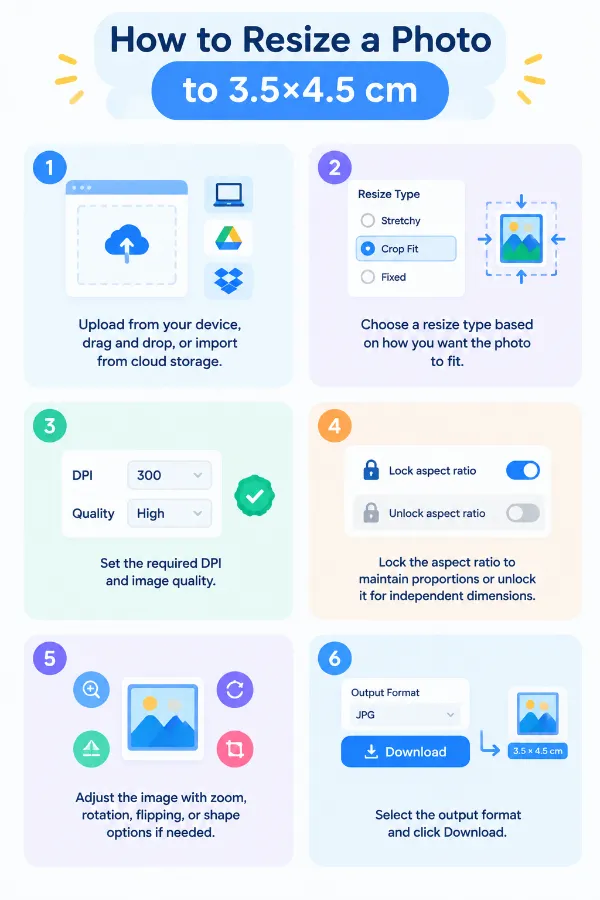
1 . Upload from your device, drag and drop, or import from cloud storage.
2 . Choose a resize type based on how you want the photo to fit.
3 . Set the required DPI and image quality.
4 . Lock the aspect ratio to maintain proportions or unlock it.
5 . Adjust the image with zoom, rotation, flipping, or shape options.
6 . Select the output format and click Download.
Other useful information
Explore our visual guides and infographics
The infographic shows how to set the image dimensions to 3.5 × 4.5 cm and save the resized file.
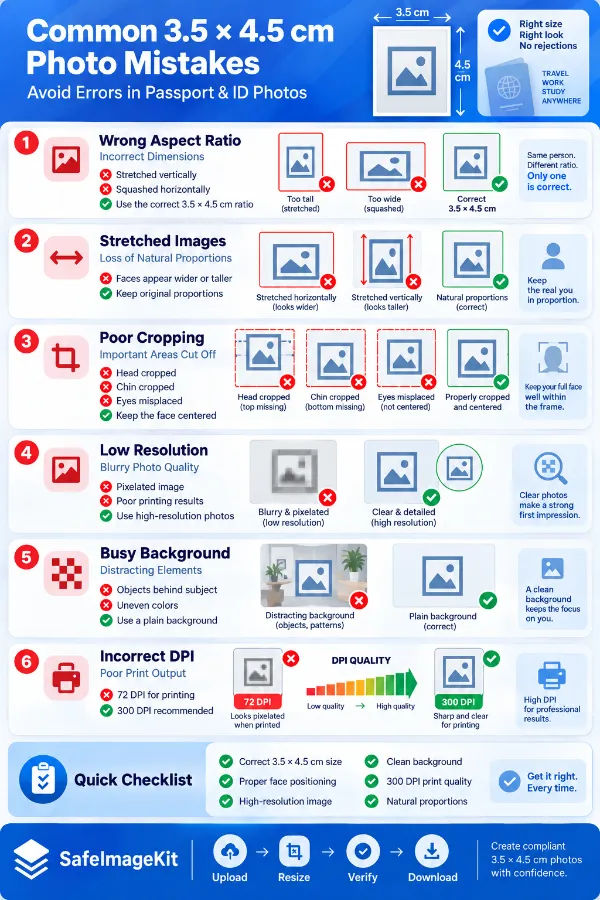
The infographic points out frequent errors to avoid when resizing photos to 3.5 × 4.5 cm.
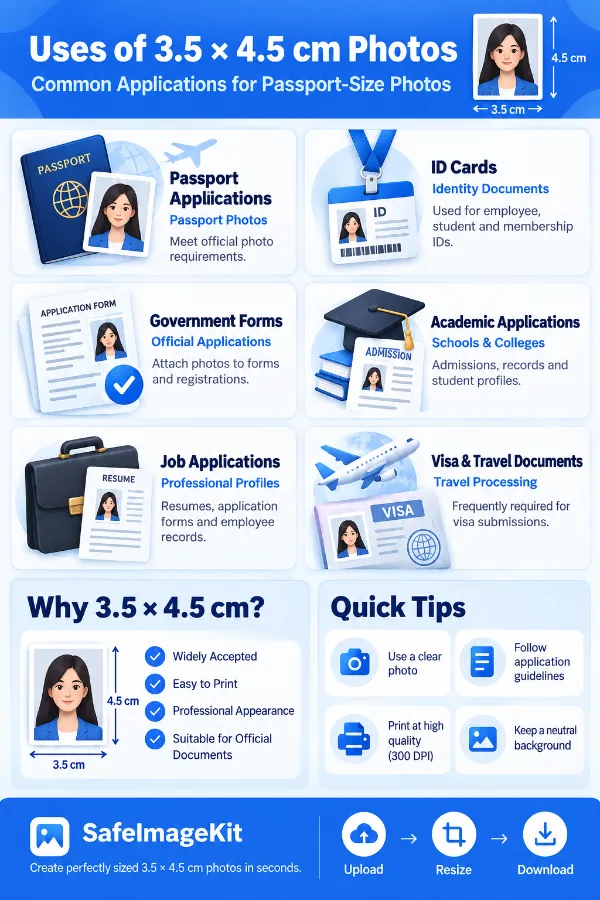
The infographic highlights common uses of 3.5 × 4.5 cm photos for ids, forms, applications, and document requirements.
×
Frequently Asked Questions
Which applications commonly ask for a 3.5×4.5 cm photograph?
A 3.5×4.5 cm photograph may be requested for certain application forms, identification-related submissions, institutional records, printed documents, and other photo specifications.
Is 3.5×4.5 cm commonly used for passport-size photographs?
The term “passport-size photo” does not have one universal dimension worldwide. Some countries, organizations, visa applications, schools, and government forms specify their own photo sizes, including 3.5×4.5 cm in some cases.
What pixel size should I use for a 3.5×4.5 cm photo?
The pixel dimensions depend on the DPI selected for the physical 3.5×4.5 cm size. For example, at 300 DPI, the approximate equivalent is 413×531 pixels, while at 200 DPI it is approximately 276×354 pixels.
How many pixels are 3.5×4.5 cm at 300 DPI?
At 300 DPI, 3.5×4.5 cm is approximately 413×531 pixels. This is calculated by converting centimeters to inches and multiplying each dimension by 300. The result may differ by a pixel because the calculated values need to be rounded to whole pixels.
How many pixels are 3.5×4.5 cm at 200 DPI?
At 200 DPI, 3.5×4.5 cm is approximately 276×354 pixels. This gives a lower pixel density than 300 DPI while representing the same physical dimensions.
Why does the pixel size change when I change DPI?
The physical dimensions remain 3.5 cm × 4.5 cm, but DPI determines how many pixels are used for each inch of that physical size. A higher DPI therefore requires more pixels to represent the same physical photograph. This is why the pixel equivalent at 300 DPI is larger than the equivalent at 200 DPI.
Can I use a 3.5×4.5 cm image for an online application?
Yes. You can create the image at 3.5×4.5 cm, choose the required DPI and quality, select an output format such as JPG, JPEG, PNG, WebP, or GIF, and download the finished image. You can also adjust the image using the available resize, aspect-ratio, background, zoom, rotation, flip, and shape controls before downloading.
What should I do if an application asks for both 3.5×4.5 cm and a maximum file size?
First prepare the photograph at the required 3.5×4.5 cm dimensions and appropriate DPI. Then select a suitable output format and adjust the quality if necessary to bring the file within the application's size limit.
Which format is usually better for an online application photo?
If the application specifically requests a format, follow that requirement. JPG or JPEG is commonly convenient for photographs because it generally produces smaller files, while PNG may be preferred when lossless output or transparency is required. WebP can be useful for web applications, but it should only be used when the receiving system supports it.
What quality setting should I use for a 3.5×4.5 cm JPG?
For a JPG photograph, a higher quality setting closer to 1 is generally preferable when preserving visible detail is important. If the application has a strict file-size limit, you can lower the quality gradually until the file meets the requirement while still looking clear. The best setting depends on both the photograph and the submission limit.
Can I use 72 DPI for a 3.5×4.5 cm printed photograph?
You can select 72 DPI in the tool, but it may not provide the pixel density required for a high-quality printed photograph. For print-oriented work, 200 or 300 DPI may be more appropriate when those values are accepted by the printer or specification. For a screen-only submission, the actual pixel dimensions may matter more than the DPI.
Can I use a mobile phone photo for a 3.5×4.5 cm application photo?
Yes. A photograph taken with a phone can be resized to the required dimensions. However, resizing only changes the image size; it does not automatically correct issues such as poor lighting, an unsuitable background, facial positioning, shadows, or other requirements specified by the application.
What background should I use for an ID or application photo?
Use the background color specified by the organization requesting the photograph. If no specific color is given, do not assume that one background is universally accepted because requirements vary between applications. The tool's Fixed mode allows you to select a background color or enter a hex color when padding is required.
Can I turn a landscape photograph into a 3.5×4.5 cm portrait photo?
Yes, but the result depends on what happens to the original composition. Crop Fit can remove parts of the wider image, Fixed can preserve the complete photograph with additional space, and Stretchy can force the image into the portrait proportions. For an application photograph, make sure important parts of the subject remain visible after resizing.
Why might a face appear too small after resizing?
The final dimensions do not determine how large the subject appears inside the photograph. If the original image contains a lot of surrounding space, the face may remain relatively small after resizing. Zooming or choosing an appropriate fitting method can help adjust the visible composition.
Can I make the photo landscape by entering 4.5×3.5 cm?
Yes. 3.5×4.5 cm places 3.5 cm as the width and 4.5 cm as the height, producing a portrait orientation. 4.5×3.5 cm reverses those dimensions and produces a landscape orientation
Can I use the same photograph for both 3.5×4.5 cm and 4.5×3.5 cm requirements?
Yes. You can start with the same original photograph and create separate versions with the required width and height.
Why does my 3.5×4.5 cm photo look different after saving as JPG?
JPG uses compression, which can slightly change image details compared with the original or a lossless format. The amount of visible change depends on the selected quality level and the photograph itself. If maintaining maximum detail is more important than file size, consider a suitable lossless format such as PNG.
Can I change the 3.5×4.5 cm photo from JPG to PNG without changing its dimensions?
Yes. The dimensions and file format are separate settings. You can keep the image at 3.5×4.5 cm and select PNG as the output format before downloading.
Can I check the photo before downloading?
Yes. The available adjustment controls let you inspect and modify the image before saving it. You can use zoom, rotation, flipping, and shape options to check the composition and make changes before downloading the final file.
What if my organization gives me dimensions in millimeters instead of centimeters?
You can use the corresponding measurement directly because the tool supports centimeters, millimeters, inches, and pixels.
Can I use the 3.5×4.5 cm tool for a photo that needs a different size later?
Yes. The 3.5×4.5 cm option is not a restriction on the rest of the tool. You can enter other dimensions and select another unit when you need to prepare the same or a different image for another requirement.
What should I do if an image is too large to upload to a website?
If a website rejects an image because its file size exceeds the upload limit, compressing the image can reduce its size without necessarily requiring you to change its dimensions. This is useful for profile photos, website uploads, email attachments, forms, and other platforms with file-size restrictions. You can compress an image and then check the resulting file size before uploading it.
How can I divide a large photo into smaller sections without editing each part separately?
A large photograph may need to be divided when you want to use different sections independently, create multiple posts from one image, or prepare a large picture for separate uploads. Instead of manually cropping and saving each section, a photo splitting tool can divide the image into separate portions more efficiently while preserving the individual sections as usable images.
Can I create several copies of the same image without editing the original repeatedly?
Yes. A duplicate-image tool is designed to generate multiple copies from the same source image, which can save time when a design requires repeated versions of one image.
Over 500k Users Rely on Our Image Editing Tools Monthly
Join a growing community of creators who trust safeimagekit.com for versatile image editing and processing solutions.
We appreciate your feedback and will use it to improve our services.
About The Author
RK Shree - A science enthusiast with a poetic flair, and possesses an insatiable desire to explore diverse fields seeking new knowledge and experiences. My work ethic is highly disciplined and dedicated. I take pleasure in pursuing creative endeavors that captivate me.