
close-button
  • images resizers in inches
  • images resizers in pixel
    OTHER TOOLS
  • Image Tools
    OTHER TOOLS
  • Social & Design Tools
  • Adjust Tools
  • Png Tools
  • Animation Tools
  • Border Tools
  • Base64 Tools
  • Filter Tools
  • Effect Tools
  • Jpg Tools
  • Gif Tools
  • Chart tools
  • Calculators
  • Social Media Tools
  • Image resizing to 400x400 pixels

    Convert any photo to exact 400x400 pixel dimensions

    Upload Image
    googledrive dropbox
    or
    drag and drop here
    Exact 400×400 or Custom Dimensions

    Exact 400×400 or Custom Dimensions

    Create a precise 400×400 pixel square image without manually calculating the required size. If you need something different image size, you can enter your own width and height and choose pixels, centimeters, millimeters, or inches.

    Multiple Upload Sources

    Multiple Upload Sources

    Add an image directly from your device, drag and drop it, or import it from Google Drive or Dropbox. The resizing itself is performed locally in your browser rather than requiring the image to be sent to a remote processing server.

    Choose the Resize Type

    Choose the Resize Type

    Select Stretchy, Crop Fit, or Fixed depending on the result you want. Stretchy fills the entire frame, Crop Fit preserves the original proportions while filling the frame, and Fixed keeps the complete image visible with customizable background padding.

    Control Aspect Ratio, DPI & Quality

    Control Aspect Ratio, DPI & Quality

    Lock the aspect ratio to maintain the original proportions or unlock it for independent width and height adjustments. Set the DPI to 72, 96, 200, or 300 and adjust image quality from 0.1 to 1 to suit screen, print, or file-size requirements.

    Fine-Tune the Final Image

    Fine-Tune the Final Image

    Use 25%–200% zoom, 90° rotation, horizontal or vertical flipping, and shape options to refine the image. Choose Original, Square, or Circle depending on how you want the final image to appear.

    Select the Output Format

    Select the Output Format

    Download the finished 400×400 image as PNG, JPG, JPEG, WebP, or GIF. You can select the format based on your image type, compatibility needs, and preferred file size.

    how to image

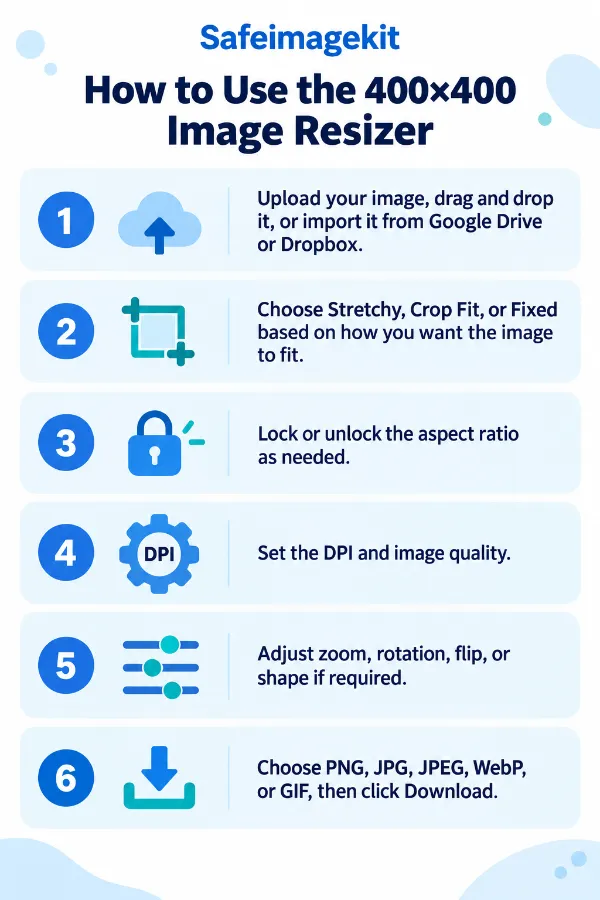
    Steps to Use the 400×400 Image Resizer

    1 . Upload your image, drag and drop it, or import it from Google Drive or Dropbox.
    2 . Choose Stretchy, Crop Fit, or Fixed based on how you want the image to fit.
    3 . Lock or unlock the aspect ratio as needed.
    4 . Set the DPI and image quality.
    5 . Adjust zoom, rotation, flip, or shape if required.
    6 . Choose PNG, JPG, JPEG, WebP, or GIF, then click Download.

    Other useful information

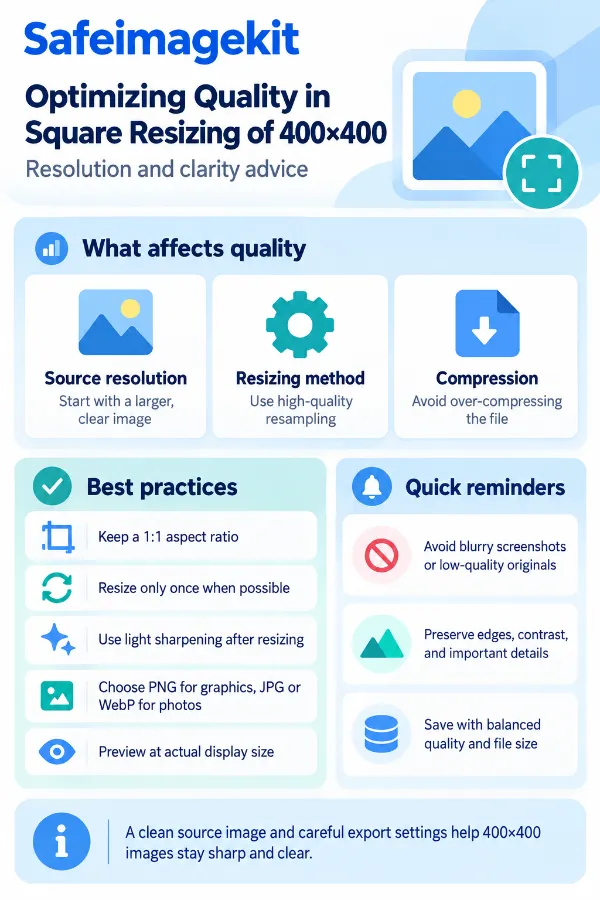
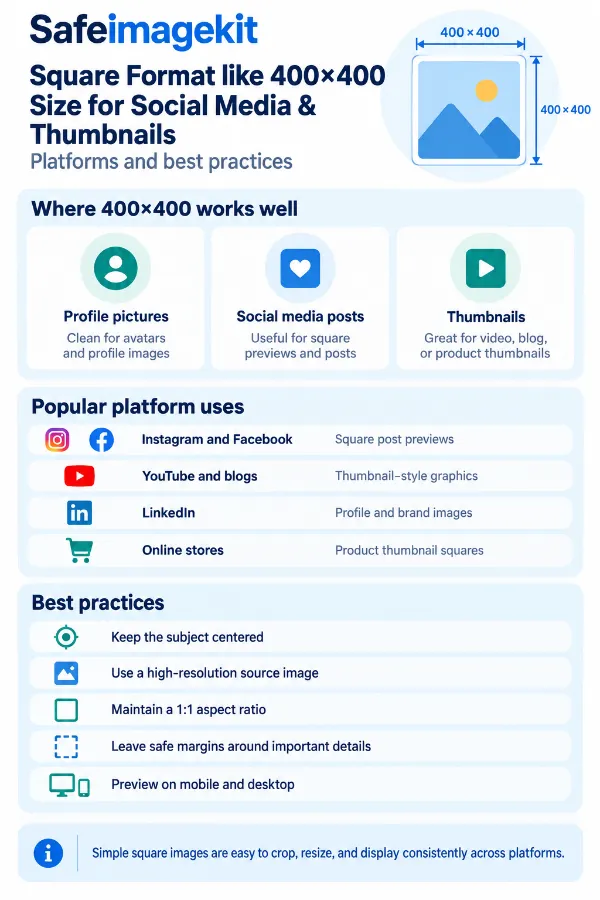
    Explore our visual guides and infographics
    ×
    Infographic Preview

    Frequently Asked Questions


    What is a 400×400 image commonly used for?

    A 400×400 pixel image is a square format commonly used when a website, application, profile section, product listing, thumbnail area, or upload field requires equal width and height.

    Can I create a 400×400 image without entering both dimensions?

    Yes. The tool provides the 400×400 preset. You need to simply upload your image, make any necessary adjustments, and download the prepared square image.

    Can I use dimensions other than 400×400?

    Yes. The tool is not limited to 400×400 pixels. You can enter your own width and height and select pixels, centimeters, millimeters, or inches when another size or measurement unit is required.

    Does DPI affect the physical size of a 400×400 image?

    Yes, DPI affects how the pixel dimensions correspond to physical dimensions when an image is printed. The same 400×400 pixel image can represent different physical sizes at different DPI settings, so a pixel requirement and a physical-size requirement should not be treated as interchangeable.

    Does higher image quality always mean a better 400×400 file?

    Not necessarily. Higher quality can preserve more image information, but the final file size also depends on the selected format and the content of the image. For a small web image, an excessively high setting may provide little visible benefit while producing a larger file.

    When should I use PNG instead of JPG for a 400×400 image?

    PNG can be preferable when you need lossless output or when the image contains elements such as graphics, text, logos, or transparency. JPG/JPEG is generally more suitable for photographic images where a smaller file is desirable. Always use the format required by the website or application if one is specified.

    What is the difference between a square and a circle shape?

    Square keeps the image in a conventional four-sided 400×400 canvas. Circle changes the visible shape of the image into a circular presentation while the underlying dimensions can still be set to 400×400.

    How can I make sure the important part of my photo stays visible?

    Use the zoom control to adjust how much of the source image is visible before downloading. This can be particularly useful when the important subject is near an edge or when you want to make sure a person's face, product, logo, or other key element remains properly positioned.

    What if my original image is extremely wide or tall?

    The best option depends on what you want to preserve. Crop Fit can create a filled square while maintaining proportions. Fixed can retain the complete image with padding, and Stretchy can fill the square by changing the original proportions. For photographs containing important content near the edges, Fixed may help avoid unwanted cropping.

    Can I use a custom background color around the photo?

    Yes. When using the Fixed mode, the remaining space around the image can be filled with a selected background color. You can also enter a hex color code when you need a specific shade rather than a standard color.

    Can I resize a 400×400 image and convert it to another format in one step?

    Yes. You can prepare the required dimensions and then choose PNG, JPG, JPEG, WebP, or GIF before downloading. This means you can handle the dimension change and format conversion within the same workflow rather than using a separate converter.

    Can I use the 400×400 resizer for personal images?

    Yes. The resizing operation is performed locally in your browser rather than requiring the image to be sent to a remote processing server. This can be useful when working with personal photographs, screenshots, documents, or other images that you prefer to process directly on your own device.

    When can a face comparison tool be useful for comparing two photos?

    A face comparison tool can be useful when you need to visually examine faces appearing in two different images. It can make it easier to place the images together and inspect visible similarities or differences rather than switching between separate files. This can be useful for personal image organization, photo comparisons, or other situations where you need to examine two face images together.

    How can an online resume maker help when creating a professional resume?

    An online resume maker can simplify the process of organizing your education, skills, experience, projects, and other relevant information into a structured resume. Instead of designing the document from scratch, you can focus on the content while using a prepared layout to keep sections organized and readable. Before submitting your resume, review the information carefully and tailor the content to the position you are applying for.

    When should I add text to a PNG instead of creating a separate text layer elsewhere?

    Adding text directly to the PNG can be convenient when you need a finished image containing both the original graphic and the text. It can be useful for simple labels, annotations, graphics, and images prepared for sharing or publishing.

    Over 500k Users Rely on Our Image Editing Tools Monthly

    Join a growing community of creators who trust safeimagekit.com for versatile image editing and processing solutions.

    rating-img

    Rate this tool

    Your feedback helps us improve our services

    3.57/5   683 votes

    About The Author

    Aditya Thakur

    Hey there! I'm Aditya Thakur, a dedicated technology enthusiast with a strong passion for music and anime. I tackle challenges head-on and consistently strive for excellence. In my past time, you can find me indulging in my favorite tunes or exploring captivating anime worlds.

    Contributors