Turn any image into a 100×100 pixel square without manually entering the width and height. Upload your image, make any necessary adjustments, and download the finished square at the required size.
Upload From Anywhere and Resize Privately
Add your image from your device, drag and drop it, or import it from Google Drive or Dropbox. The resizing itself runs locally in your browser, so the image does not need to be sent to a remote processing server for the resize operation.
Smart Image Fitting
Decide how much of the original image should appear in the final 100×100 canvas. Stretchy fills the entire square, Crop Fit preserves proportions while filling the frame, and Fixed keeps the complete image visible with padding.
Aspect Ratio Control
Lock the aspect ratio to keep the image's width and height proportional when making adjustments. Unlock it when you need to change the width and height independently for a specific size requirement.
Frame & Adjust Your Image
Use 25%–200% zoom to position the important part of your image within the 100×100 canvas. You can also rotate 90° left or right, flip horizontally or vertically, and choose Original, Square, or Circle shape before downloading.
Set Image Density, Quality and Format
Choose the available DPI setting and adjust image quality from 0.1 to 1 according to how the 100×100 image will be used. You can then save it as PNG, JPG, JPEG, WebP, or GIF, giving you control over compatibility and output characteristics.
Steps to Make an Image 100×100 Pixels
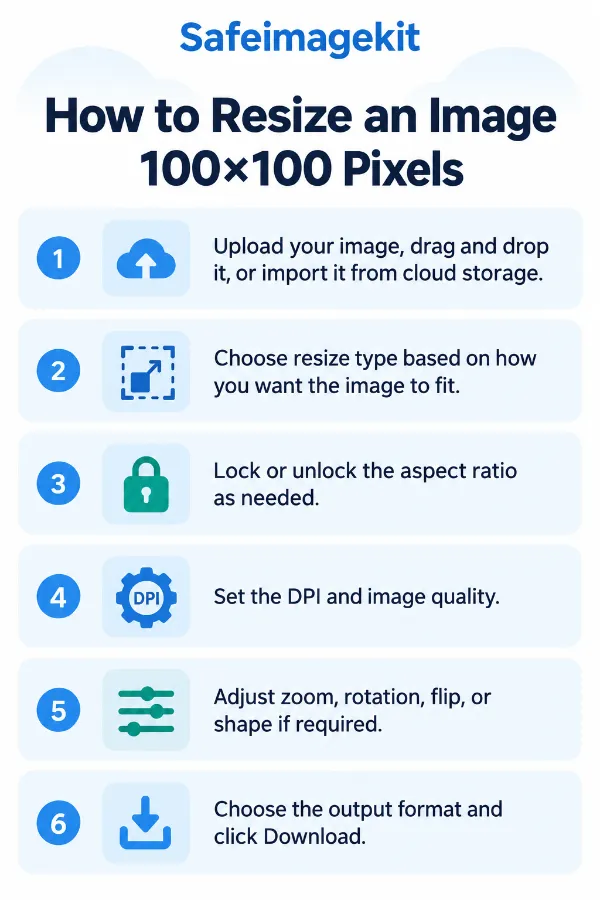
1 . Upload your image, drag and drop it, or import it from cloud storage.
2 . Choose resize type based on how you want the image to fit.
3 . Lock or unlock the aspect ratio as needed.
4 . Set the DPI and image quality.
5 . Adjust zoom, rotation, flip, or shape if required.
6 . Choose the output format and click Download.
Other useful information
Explore our visual guides and infographics
The infographic explains how to set an image to 100 × 100 pixels and create the resized version.
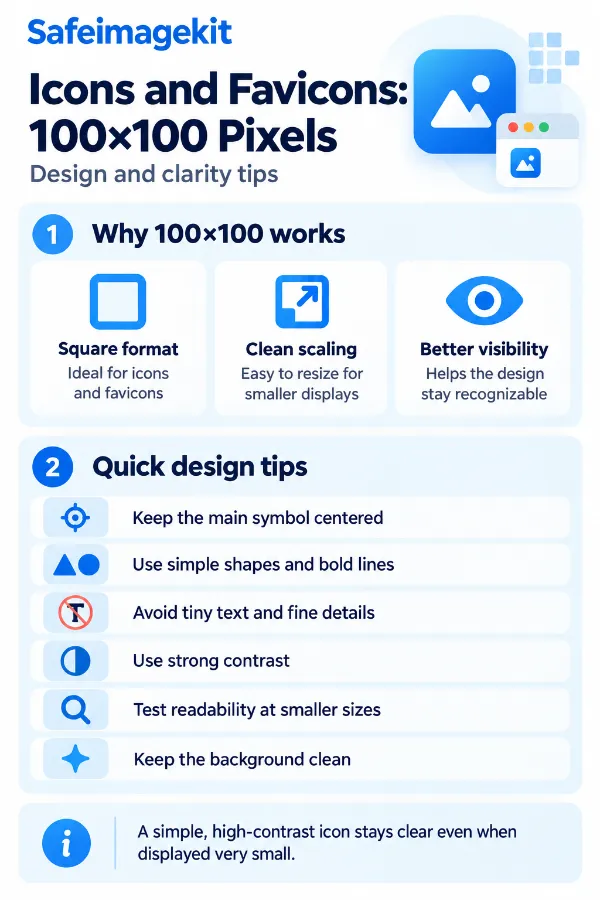
The infographic shares design tips for keeping 100 × 100 pixel icons and favicons clear and recognizable.
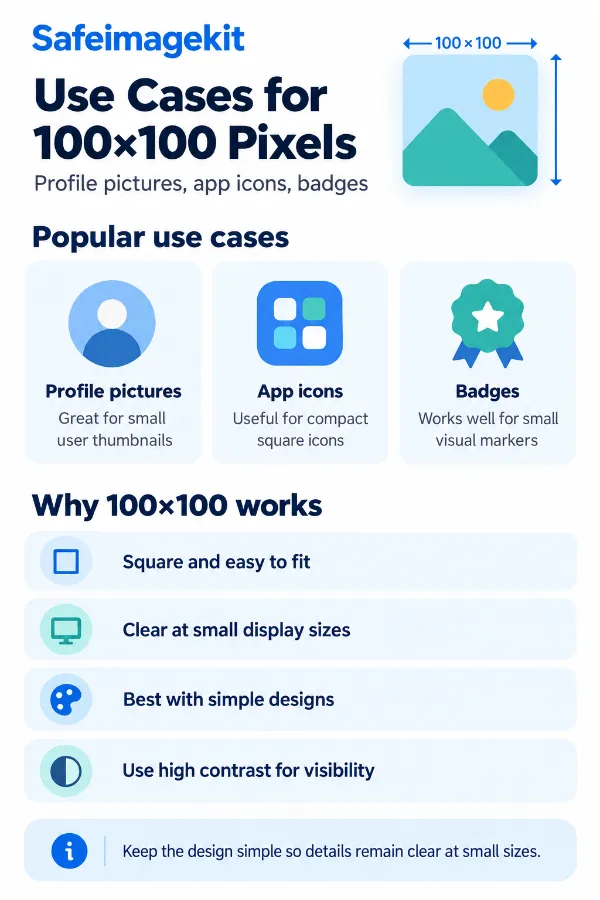
The infographic highlights common applications of 100 × 100 pixel images.
×
Frequently Asked Questions
Where is a 100×100 pixel image commonly used?
A 100×100 image is useful for small profile images, user avatars, thumbnails, website components, application interfaces, icons, and other areas where a compact square image is required. For example, a website may reserve a 100×100 pixel area for a user's profile image or a small preview.
Is 100×100 suitable for a website thumbnail?
Yes. A 100×100 image works well when a website specifically reserves a 100-pixel square thumbnail area. Because the output has relatively few pixels, it is better suited to small on-screen displays than situations where the image needs to be enlarged significantly.
Can I use 100×100 for a profile picture?
Yes. A 100×100 square can work for small profile pictures or avatar areas on websites and applications that accept that size. It is particularly convenient when the profile area itself is approximately 100×100 pixels, because the image already matches the displayed dimensions.
Is 100×100 large enough for printing?
A 100×100 image is generally intended for small digital use rather than detailed printing. At 300 DPI, for example, 100 pixels represents only about 0.33 inches of physical width. If you need a printed photograph, a larger pixel dimension is normally more appropriate.
Does changing DPI make a 100×100 image higher resolution?
No. A 100×100 image always contains 10,000 pixels, regardless of whether you select 72, 96, 200, or 300 DPI. Changing DPI affects how those pixels relate to a physical measurement when the image is prepared for printing.
What quality setting should I use for a 100×100 JPG?
For a small JPG, a higher quality setting closer to 1 is useful when you want to retain more image detail. If the image needs to be particularly small in file size, you can reduce the quality while checking that the resulting image still looks clear enough for its intended use.
Which format should I use for a 100×100 image?
Use the format that matches your intended use. JPG or JPEG is convenient for photographic images and generally produces compact files, PNG is useful when you want lossless image output, and WebP can provide efficient web-oriented output. GIF is also available when that format is specifically needed.
Does choosing Circle change the 100×100 dimensions?
No. The canvas can remain 100×100 pixels while the visible shape is changed to a circle. The shape determines how the image is presented, while the pixel dimensions determine the size of the digital canvas.
Can I use a logo for a 100×100 image?
Yes. A logo can be resized to 100×100 pixels for use in a small website or application area. If the logo is not naturally square, Fixed mode with suitable padding can help keep the complete logo visible instead of cutting off part of its design.
What if my logo has a transparent background?
If the required output and format support transparency, choose a suitable format such as PNG rather than a format that requires a solid background. This can help preserve the transparent areas around a logo when the image is used on different backgrounds.
Can I make a 100×100 image from a screenshot?
Yes. You can upload a screenshot and resize it to 100×100 pixels. Because screenshots often contain text or interface elements, use the zoom and fitting controls carefully so the important area remains visible in the small output.
Why does text become difficult to read in a 100×100 image?
A 100×100 image contains only 10,000 pixels, so there is limited space for fine details. Small text, thin lines, and detailed graphics may become difficult to distinguish after significant reduction. If the image needs readable text, use a larger output size whenever the destination allows it.
Can I use a 100×100 image for an icon?
Yes. A 100×100 canvas can be useful when a website or application requires an icon or graphic at that exact size. For detailed artwork, however, the final appearance should be checked at 100×100 because very fine elements may become less visible after resizing.
Can I resize several types of images to 100×100?
Yes. You can start with photographs, screenshots, logos, illustrations, graphics, and other supported image files. The fitting and adjustment options let you decide how the source should appear in the small square output.
Can I use Dropbox instead of uploading from my computer?
Yes. The tool supports importing images from Dropbox as well as uploading from your device or dragging and dropping the file into the tool. This gives you several ways to provide the source image.
Can I use a different size after opening the 100×100 image resizer?
Yes. The tool also supports custom dimensions and different measurement units, including pixels, centimeters, millimeters, and inches. This means you can use the same tool for another image size without being limited to 100×100 pixels.
When should I use an online presentation maker instead of designing slides from scratch?
A presentation maker can save time when you need to organize information into a clear sequence of slides without building the entire layout manually. It can be useful for school projects, business presentations, reports, tutorials, and other situations where headings, supporting information, and visual elements need to be arranged in a logical structure. You can then review and refine the generated presentation so it matches your topic and audience.
How can a LinkedIn post maker help create a professional LinkedIn post?
A LinkedIn post maker can help organize an idea into a structured post that is easier to read and share. It can be useful when you want to turn a professional achievement, industry observation, project update, announcement, or useful insight into a polished post. After generating the draft, you should personalize the wording and add your own experience or perspective so the final post sounds authentic.
Why should I check the EXIF data before sharing a photo?
Checking EXIF metadata can help you understand what information is attached to an image before you share or publish it. This is particularly useful when you want to review the technical and metadata details associated with a photograph.
Over 500k Users Rely on Our Image Editing Tools Monthly
Join a growing community of creators who trust safeimagekit.com for versatile image editing and processing solutions.
We appreciate your feedback and will use it to improve our services.
About The Author
Hey there! I'm Aditya Thakur, a dedicated technology enthusiast with a strong passion for music and anime. I tackle challenges head-on and consistently strive for excellence. In my past time, you can find me indulging in my favorite tunes or exploring captivating anime worlds.