Create a 320×320 pixel square image without manually entering the width and height. Simply upload your image, review the available settings, and download the finished square image. This is useful for websites, profile areas, applications, forms, and other places that require a fixed 320×320 size.
Flexible Ways to Upload Your Image
Upload your image directly from your device, drag and drop it into the tool, or import it from supported cloud storage such as Google Drive or Dropbox. Choose whichever method is most convenient for the image you want to resize. This makes it easier to start the 320×320 conversion without moving the file between applications.
Choose the Right Resize Type
Decide how the original image should appear inside the square frame with Stretchy, Crop Fit, or Fixed. Stretchy fills the entire square but may alter the image's proportions, while Crop Fit maintains proportions and may remove some edges. Fixed keeps the complete image visible and fills the remaining space with background padding when necessary.
DPI, Quality & Aspect Ratio Control
Choose a DPI from 72 to 300 and adjust quality from 0.1 to 1 depending on whether the image is intended for screen use, printing, or a specific file-size requirement. Lock Aspect Ratio helps maintain proportional dimensions when making adjustments. Unlocking it gives you independent control over width and height when an exact output is required.
Built-In Image Adjustment Tools
Make final adjustments before downloading with 25%–200% zoom, 90° left or right rotation, and horizontal or vertical flipping. You can also choose whether the result keeps its original shape, square shape, or circular shape. These controls let you prepare the image within the same tool instead of switching to another editor.
Multiple Formats for the Final Image
Download the finished image as PNG, JPG, JPEG, WebP, or GIF depending on where you plan to use it. JPG and JPEG are practical for photographs, PNG can be useful when lossless output or transparency is needed, and WebP can help with web-oriented file sizes. Combined with the available quality control, you can choose an output that suits your image and file-size requirements.
Steps to Resize Image to 320×320 Pixel
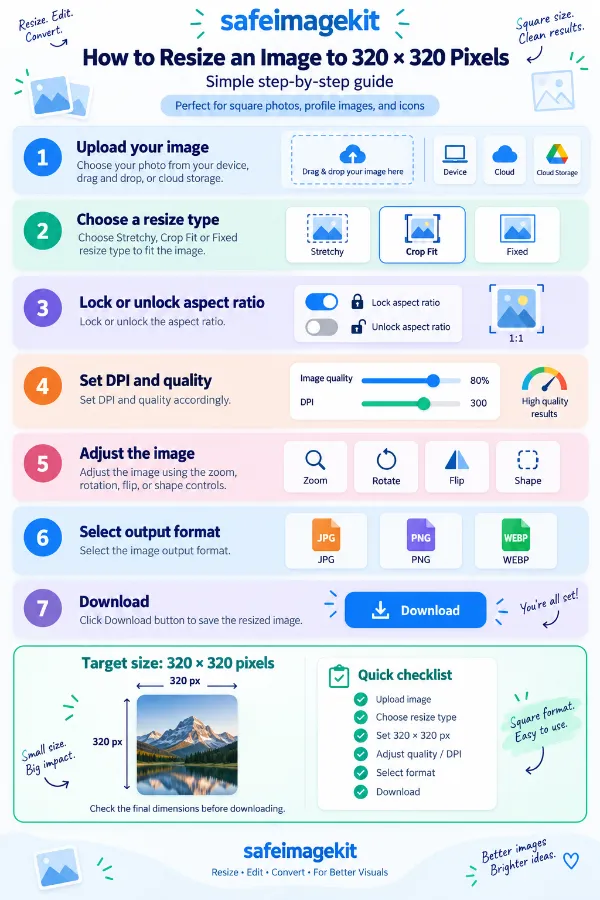
1 . Choose your photo from your device, drag and drop, or cloud storage.
2 . Choose Stretchy, Crop Fit or Fixed resize type to fit the image.
3 . Lock or unlock the aspect ratio.
4 . Set DPI and quality accordingly.
5 . Adjust the image using the zoom, rotation, flip, or shape controls.
6 . Select the image output format.
7 . Click the Download button to save the resized image.
Other useful information
Explore our visual guides and infographics
The infographic shows the basic process for creating an image with 320 × 320 pixel dimensions.
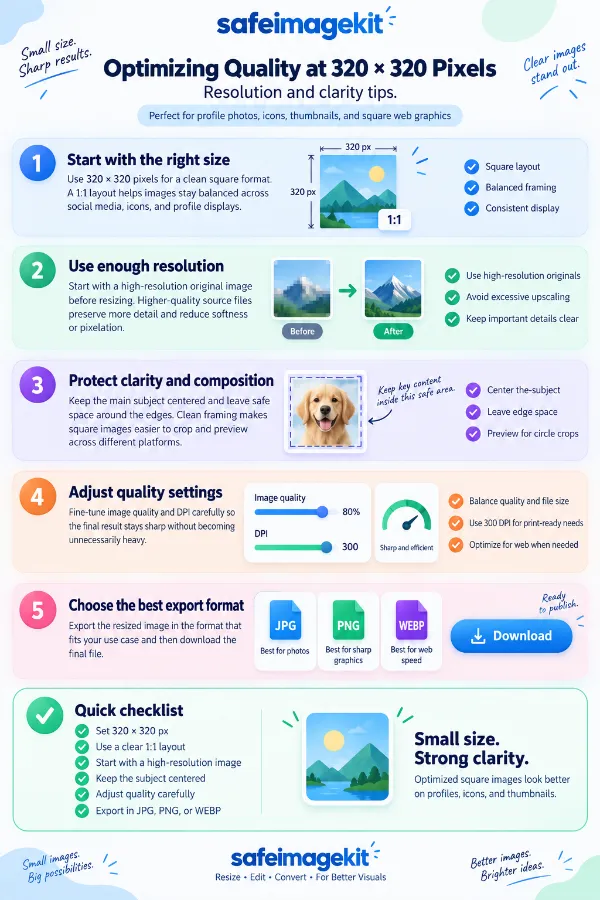
The infographic explains ways to keep a 320 × 320 pixel image clear and suitable for digital use.
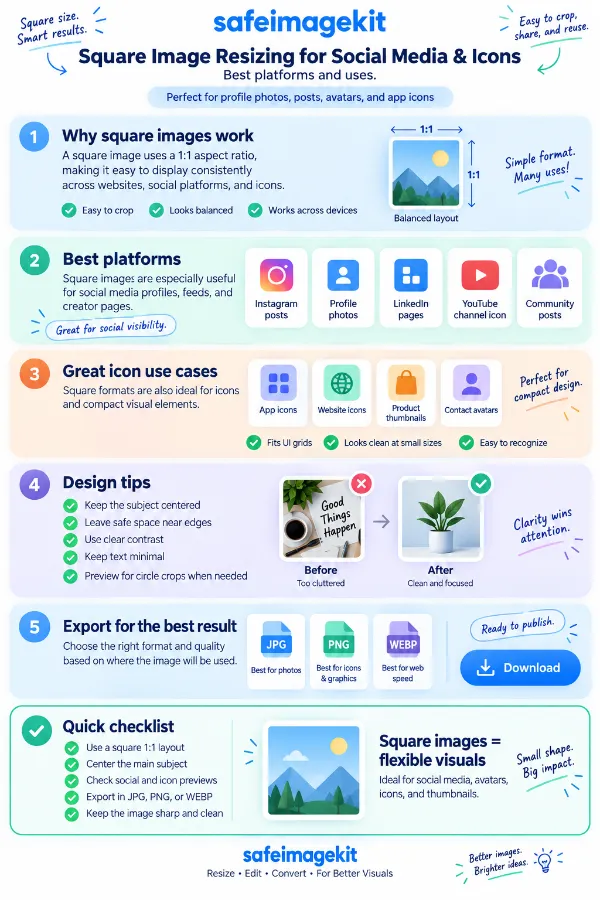
The infographic highlights how square images can be resized for social media profiles, posts, icons, and other digital uses.
×
Frequently Asked Questions
What is a 320×320 image?
A 320×320 image is a square digital image containing 320 pixels across its width and 320 pixels down its height. Because both measurements are equal, the image has a 1:1 aspect ratio, so it forms a perfect square rather than a portrait or landscape rectangle. This type of fixed square size is often used when an application, website, profile area, or design requires equal width and height.
Is 320×320 the same as 320×320 pixels?
Yes. In the context of digital image dimensions, 320×320 means 320 pixels wide by 320 pixels high. It does not mean 320 inches, centimeters, or millimeters. The physical size of a 320×320 pixel image can vary depending on the DPI when the image is used for printing.
What is the aspect ratio of a 320×320 image?
The aspect ratio is 1:1 because the width and height are both 320 pixels. This means neither dimension is longer than the other, producing a square image. The 1:1 proportion is different from formats such as 4:3, 16:9, or 4:1, which have wider or taller shapes.
Can I turn a rectangular photo into a 320×320 square?
Yes. A rectangular photograph can be prepared as a 320×320 square, but the original shape and the square target do not always match. Crop Fit can remove parts of the edges, Stretchy can change the proportions, while Fixed can preserve the complete photograph and add padding around it. The best option depends on whether filling the square or keeping the entire photograph is more important.
How do I make a photo 320×320 without distorting it?
If the original photograph is not square, avoid Stretchy because it forces the image into equal 320×320 dimensions and can change its proportions. Crop Fit maintains the original proportions but may remove some edges, while Fixed maintains the proportions and keeps the entire photograph visible. Choose between these two based on whether you prefer cropping or padding.
What happens when I choose Stretchy for a 320×320 image?
Stretchy changes the image to exactly 320×320 by independently fitting its width and height to the target dimensions. This ensures that the entire square is filled without cropping or empty padding. However, when a rectangular source image is converted to a square, objects or other elements may appear wider or narrower because the original proportions are changed.
When should I use Fixed mode for a 320×320 image?
Use Fixed when preserving the entire original image is more important than filling every part of the square. It is useful for photographs, product images, documents, or portraits where cropping could remove important details. Any unused space can be filled with a background color rather than cutting content from the source.
What is the difference between Crop Fit and Fixed for a square image?
Both options maintain the original image's proportions, but they handle the extra space differently. Crop Fit fills the entire 320×320 square by removing portions of the image that fall outside the target frame. Fixed keeps the complete image and adds padding to areas that are not covered by the source.
How many pixels are in a 320×320 image?
A 320×320 image contains 102,400 pixels in total, calculated as 320 × 320. These pixels make up the complete digital image area. The total pixel count describes the image's digital dimensions and does not tell you its physical size when printed.
Can I reduce a larger image to 320×320 pixels?
Yes. A photograph with much larger dimensions can be reduced to 320×320 pixels. This reduces the number of pixels in the image and can also help create a smaller digital file, although the final file size will additionally depend on factors such as the output format and quality setting.
Can I enlarge a small image to 320×320 pixels?
Yes. You can enlarge an image that is smaller than 320×320 to the required dimensions. However, increasing the number of pixels does not restore fine detail that was not present in the original image, so a very small or low-quality source may still look soft after enlargement.
What DPI should I use for a 320×320 image?
The appropriate DPI depends on how you intend to use the image. 72 DPI is generally suitable for basic screen or web use, 96 DPI can be useful for general digital applications, 200 DPI can work for many ordinary print requirements, and 300 DPI is generally preferred when higher print detail is needed. If a printer, website, application, or organization specifies a DPI, follow that requirement rather than choosing a value based only on the image size.
Does DPI change the 320×320 pixel dimensions?
DPI and pixel dimensions describe different aspects of an image. 320×320 pixels specifies the digital width and height, while DPI describes pixel density when relating the image to a physical measurement such as inches. Therefore, changing DPI can change the physical size associated with the image without necessarily changing its 320×320 pixel dimensions.
Can I choose a custom background color for the padding?
Yes. Fixed mode allows you to select a background color and, where supported, enter a hexadecimal color code for more precise control. For example, you can use a white background for a clean document-style result or choose another color that matches the surrounding design. The background is applied to the additional space created when the original image does not fill the complete square.
Can I make a circular image from a 320×320 image?
Yes, if the tool's shape options include the circular output option. A 320×320 square provides equal width and height, making it suitable as the base dimensions for a circular result. The shape selection changes the appearance of the output while the underlying square dimensions remain 320×320 pixels.
Can I resize a private photograph to 320×320 without uploading it to a server?
Yes. The resizing operation is designed to run locally in the browser, so the image does not need to be transmitted to a remote processing server for the resizing operation. This can be useful when working with personal photographs or other files that you prefer to process directly on your own device. As with any online tool, you should still follow your organization's requirements when handling regulated or confidential information.
How can I compare two photos of faces side by side?
Comparing two face photos is easier when both images can be viewed together in the same workspace. A face comparison tool can help you place the images side by side so you can examine visible features, expressions, positioning, or other differences without repeatedly opening and switching between separate files. It can be useful for organizing personal photos or reviewing two versions of a photograph.
What can I use an image caption generator for besides social media posts?
An image caption generator can be useful for more than creating social media captions. It can provide a starting point for descriptions of photographs, blog images, product visuals, presentations, articles, and other visual content. You can use the generated text as a draft and then refine it to better match the image, writing style, context, and intended audience.
We appreciate your feedback and will use it to improve our services.
About The Author
RK Shree - A science enthusiast with a poetic flair, and possesses an insatiable desire to explore diverse fields seeking new knowledge and experiences. My work ethic is highly disciplined and dedicated. I take pleasure in pursuing creative endeavors that captivate me.